


How to request a refund on the OVO app

Updated on 08/09/26 by Abby_OVO
You can request a refund through the OVO app (download for Android or iOS).
Select the ‘Bills’ tab at the bottom of the home page:
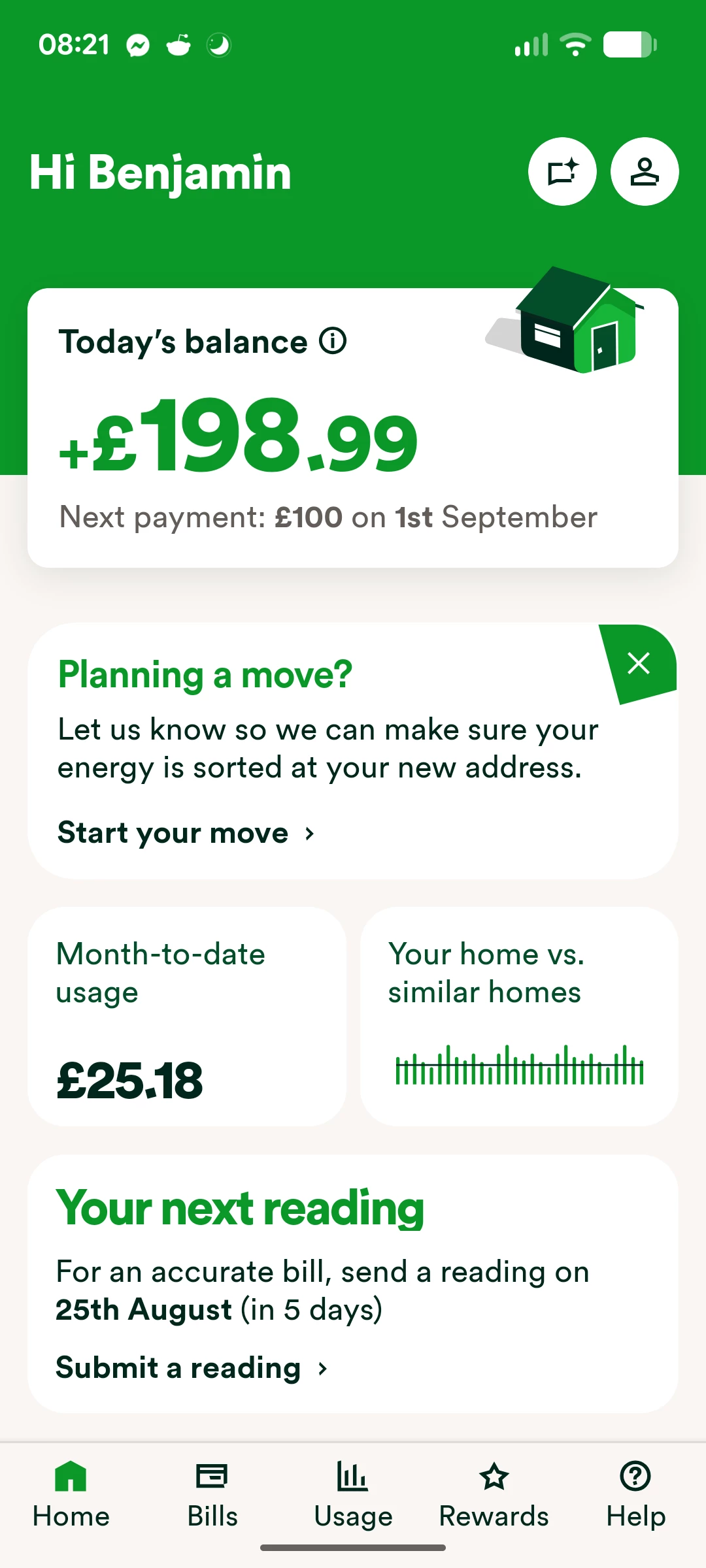
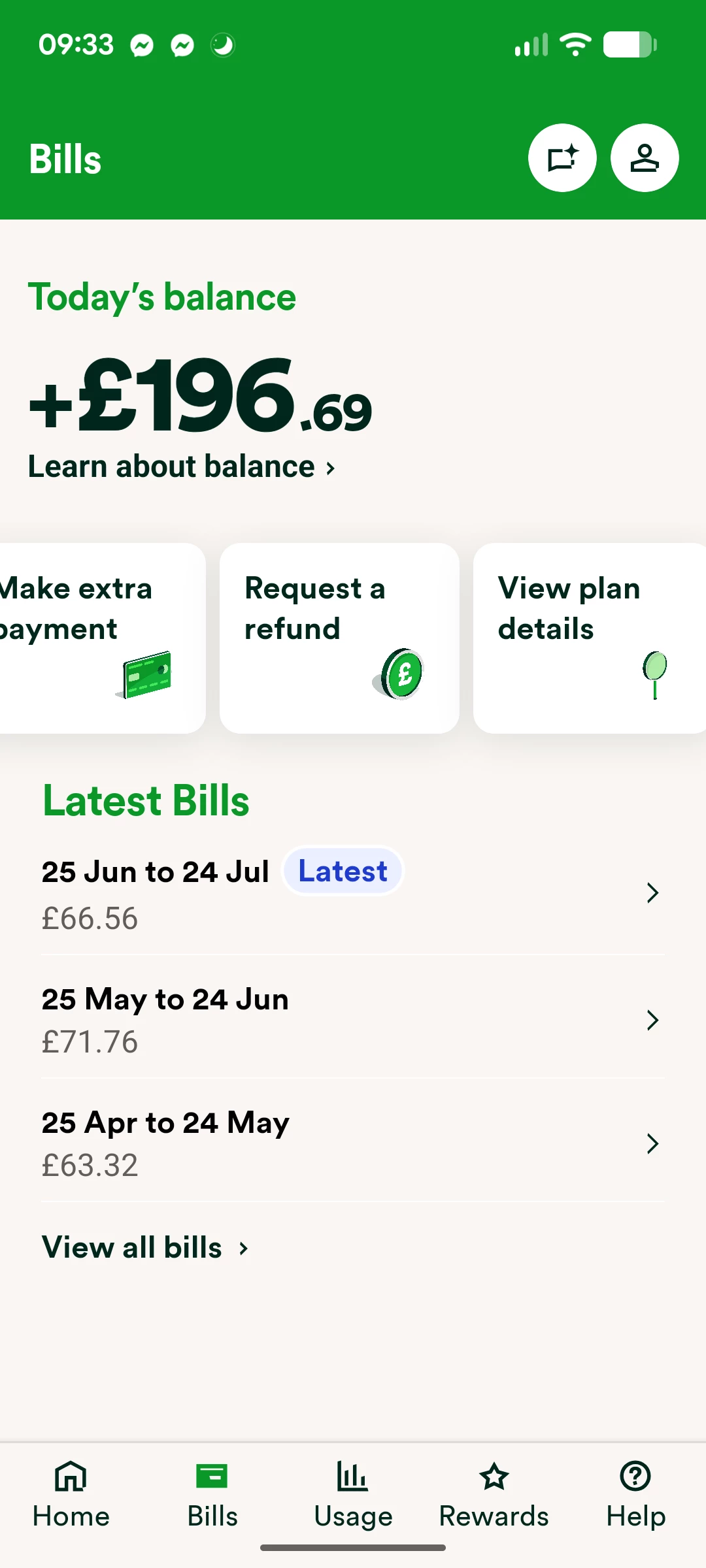
On the ‘Bills’ page scroll to the right and select ‘Request a refund’:
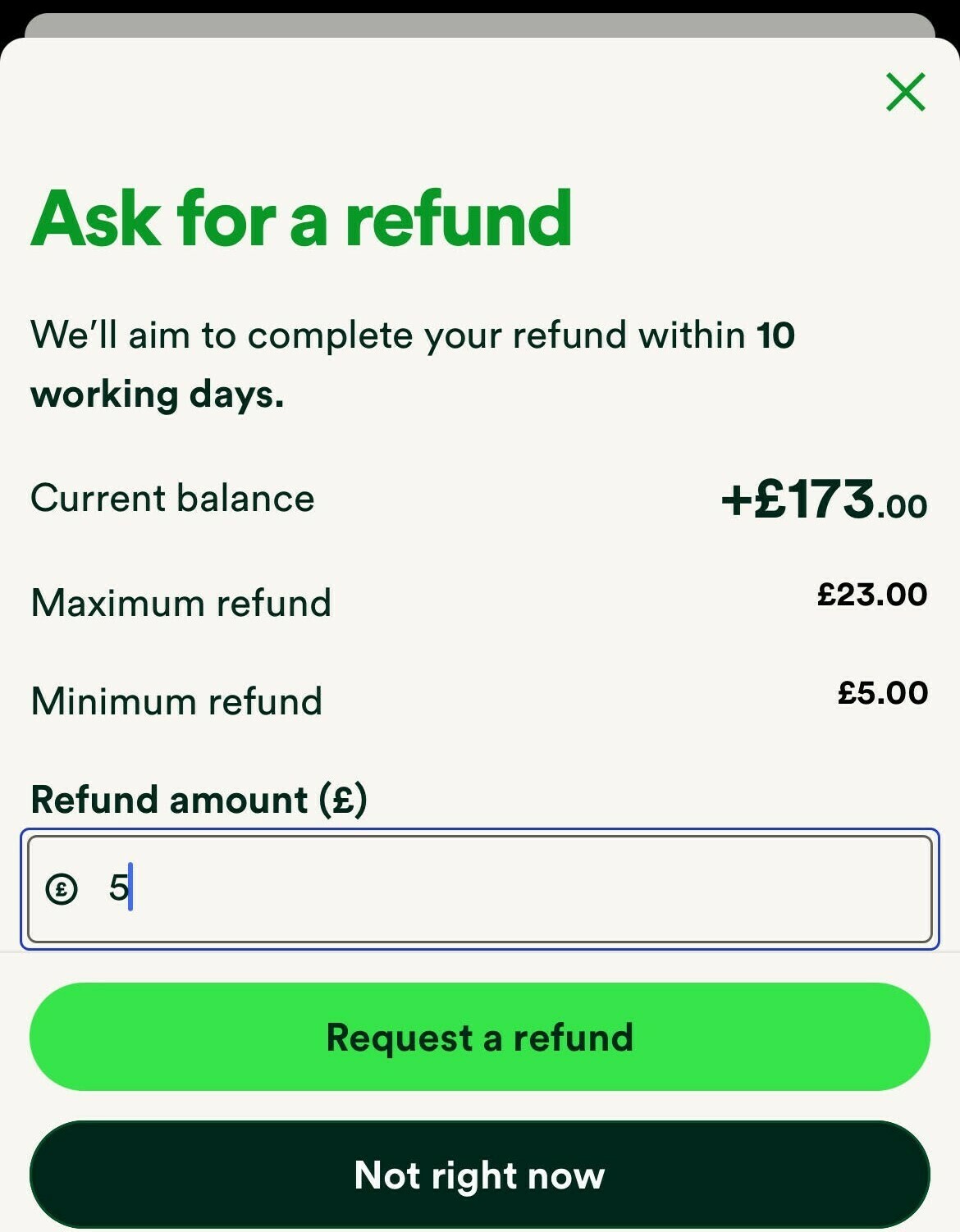
You’ll be taken to this page, where you’ll be able to see your current balance, your maximum refund amount and the minimum refund amount:
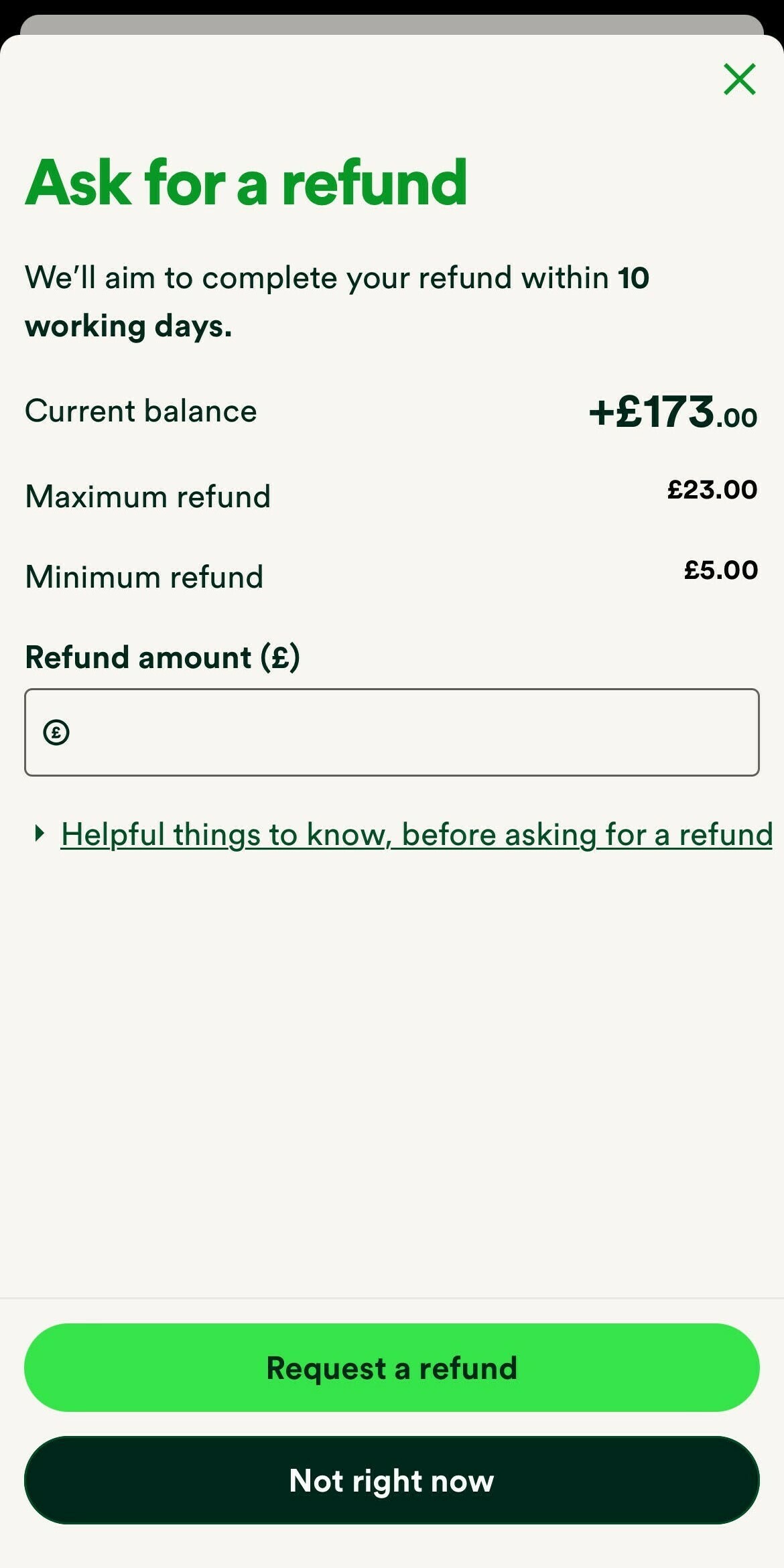
Enter your requested amount in the ‘Refund amount (£)’ box, up to a maximum of £500 (making sure there’s still at least three Direct Debit amounts remaining in credit), and select ‘Request a refund’.
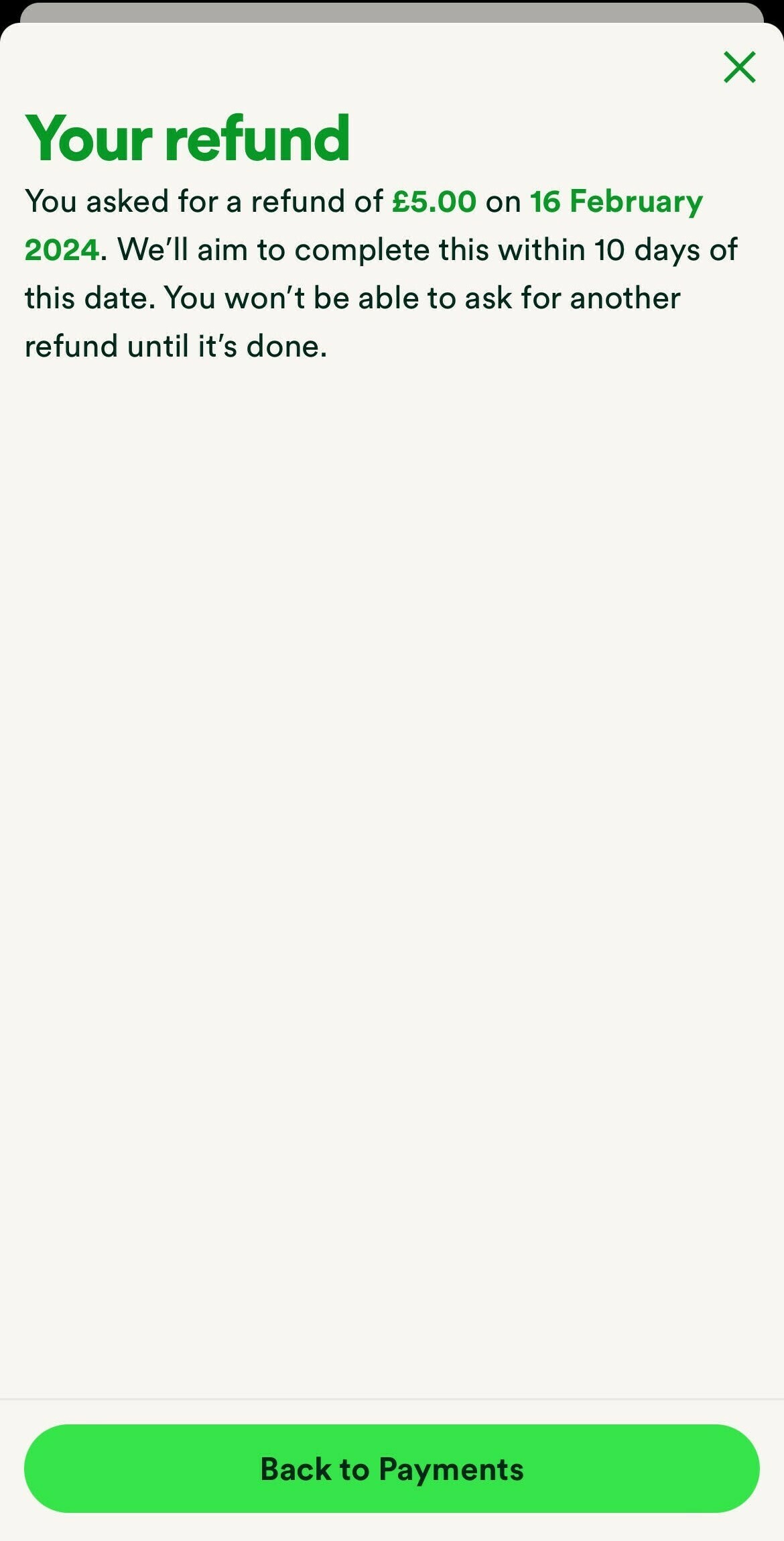
Once you’ve confirmed the amount you wish to have refunded. If successful you’ll see this confirmation page with details about that refund
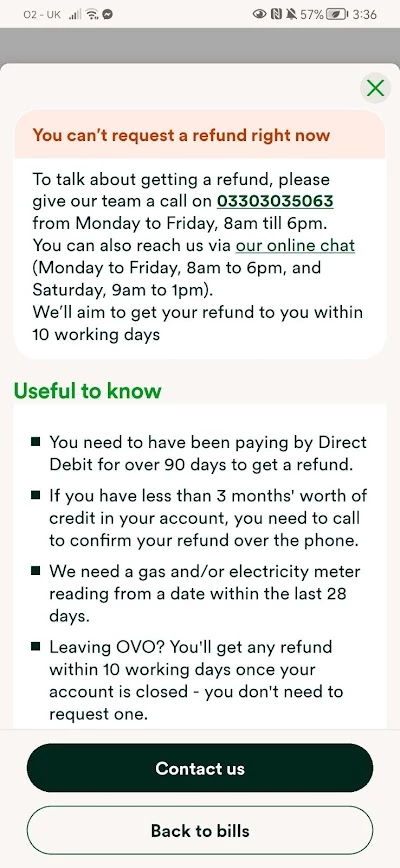
If not you’ll see this page,
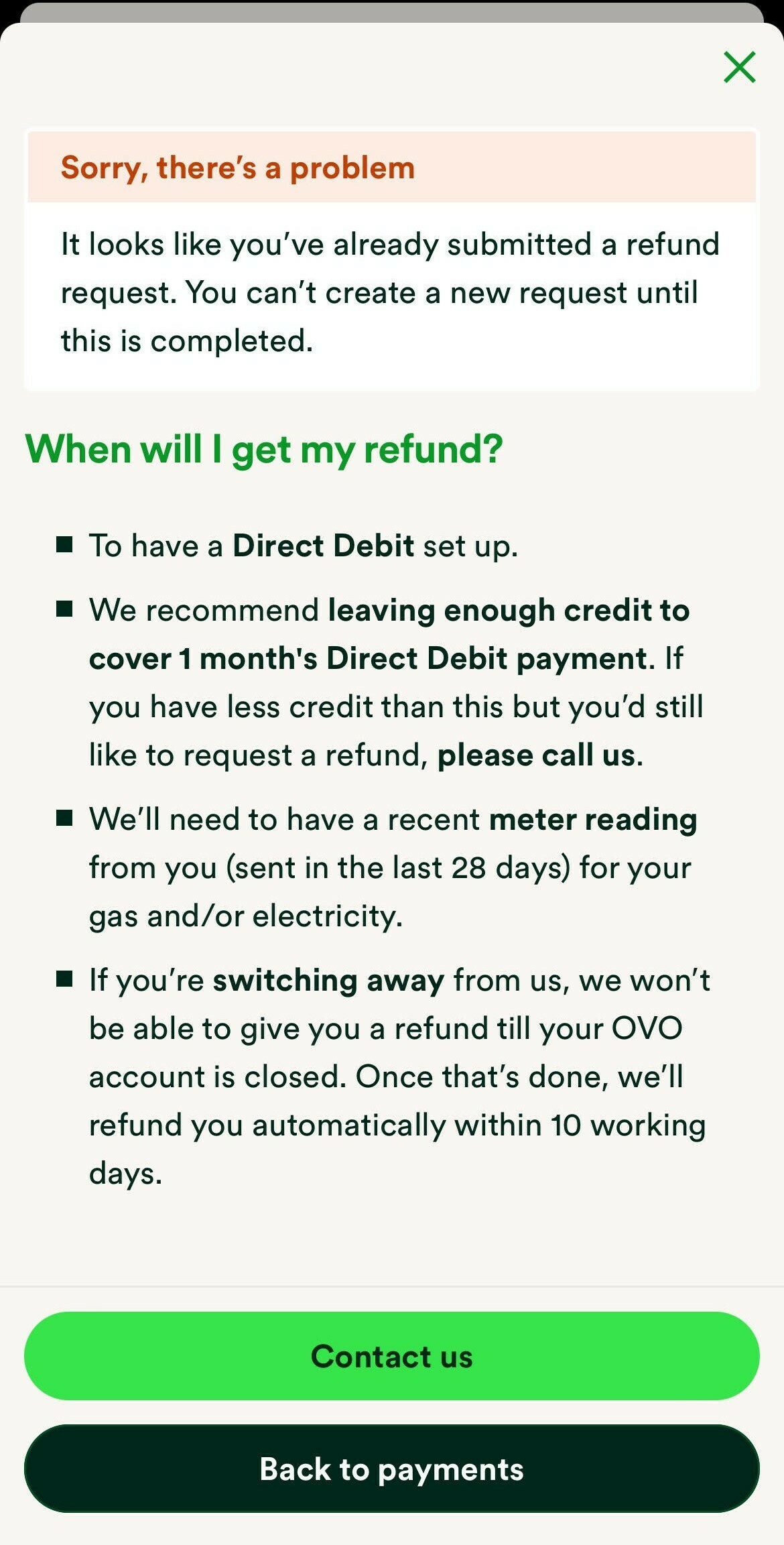
Similarly, if you’ve already requested a refund you’ll see this notice:
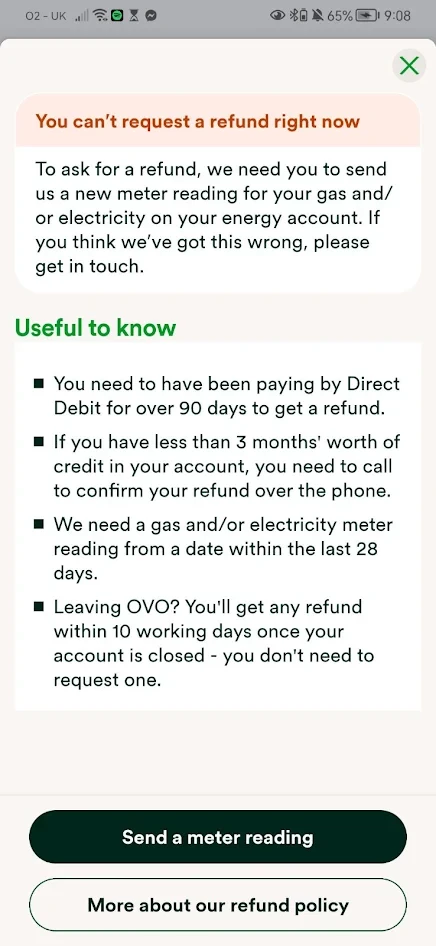
When asking for a refund, you’ll need to have submitted actual meter readings within the last 28 days. If you haven’t submitted regular readings, you’ll see the screen below. Click on ‘send a meter reading’ and you’ll be taken to the correct page to do that. Once you’ve sent a reading, you’ll be able to request a refund. (You might need to wait 24 / 48 hours for your account balance to update before the refund can be requested).
If you’d like more credit refunded you can contact our Support Team who can initiate refunds up to £2,000. However, if the refund is over £599, we’ll need to check the account has been billed to actual meter reads and request photos of the meter(s).
Need more help?
This topic is now closed, so you won’t be able to reply here. If your question hasn’t been answered or you need more advice, feel free to ask the community — we’re here to help!
Give us your feedback!
Was this article helpful? Is our Library missing content? Share your anonymous feedback here and help us improve!