


Making a card payment on your online account or OVO app

Updated on 20/08/26 by Ben_OVO
You can make a top up card payment at any time via your online account or OVO app (download for Android or iOS). The process is very similar on both.
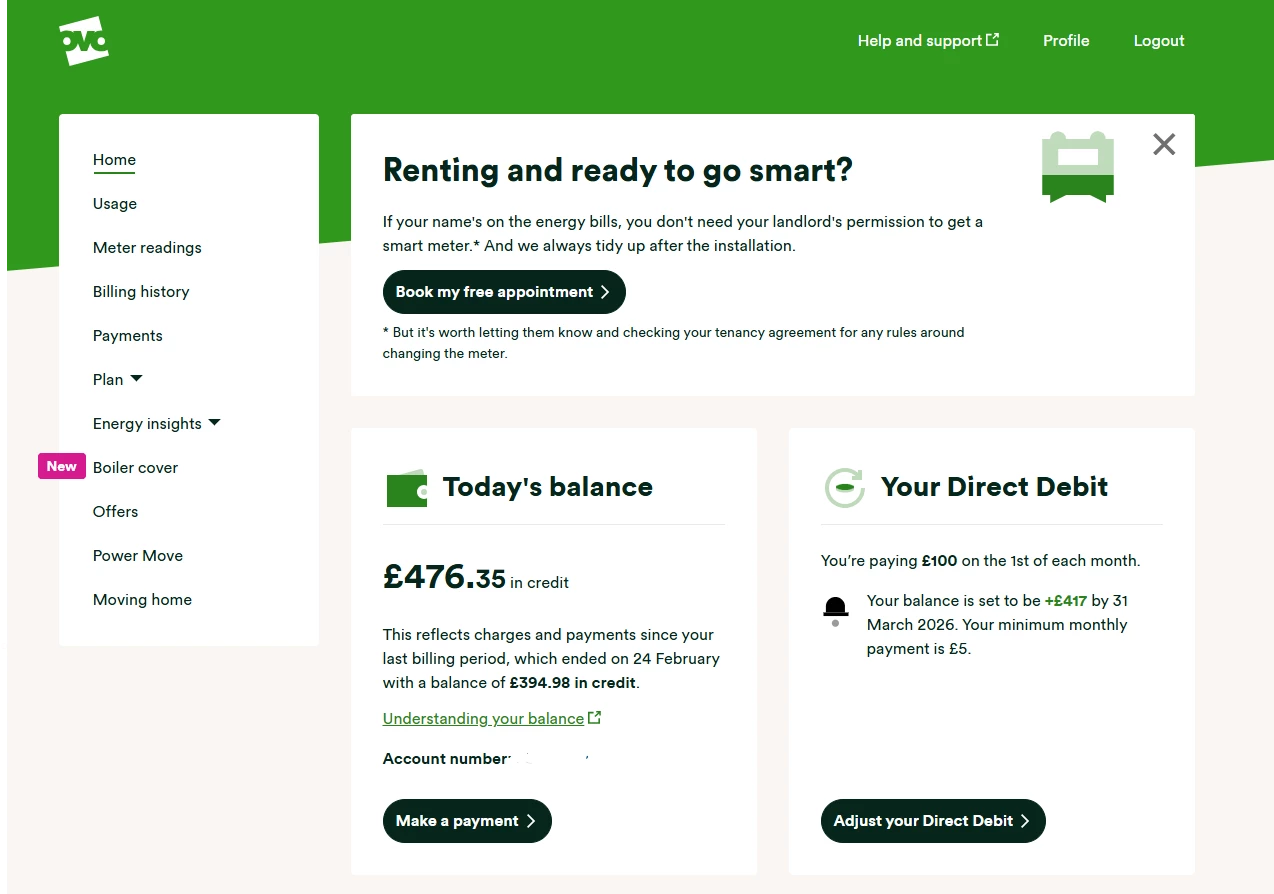
From your online account, click ‘Make a payment’ on the home page:
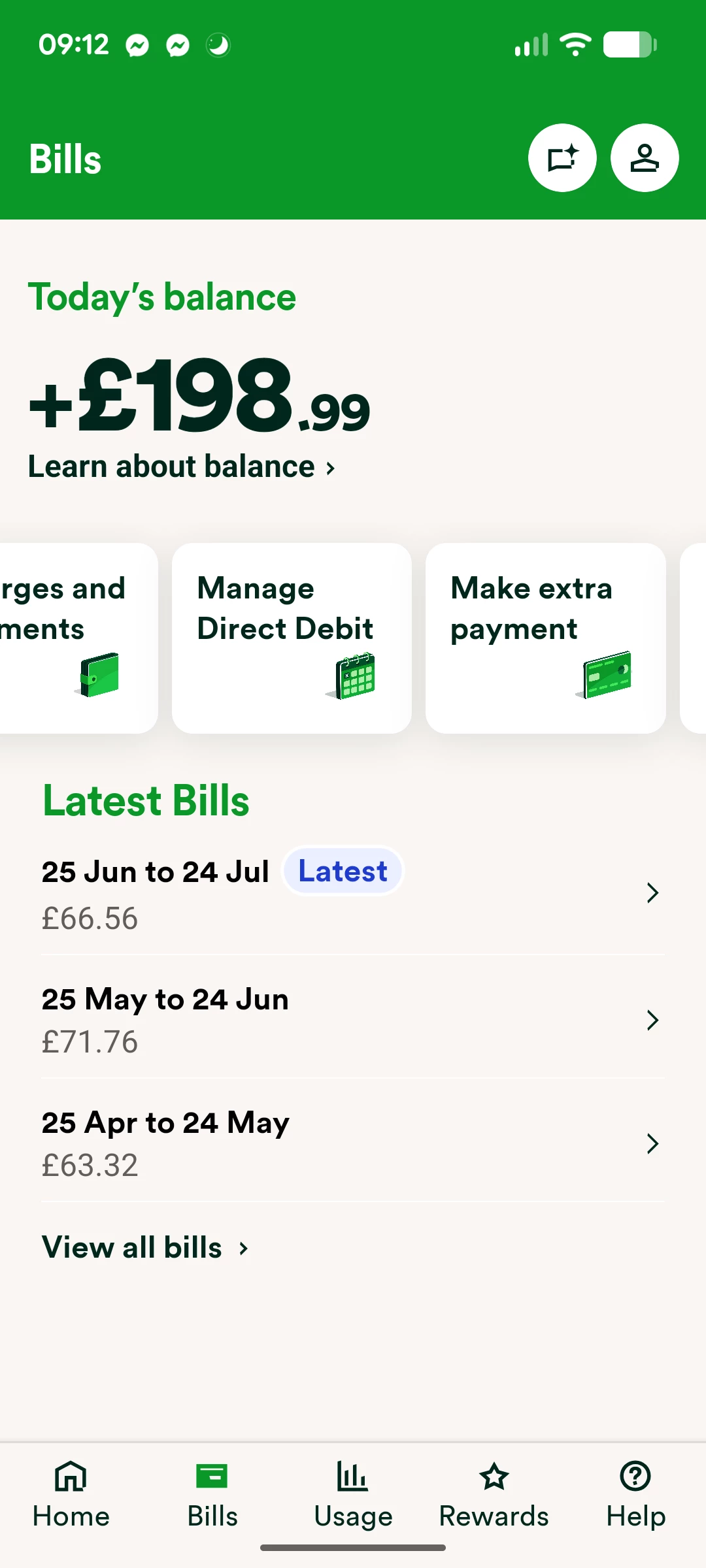
If you’re using the app, select ‘Bills’ and then select ‘Make extra payment’:
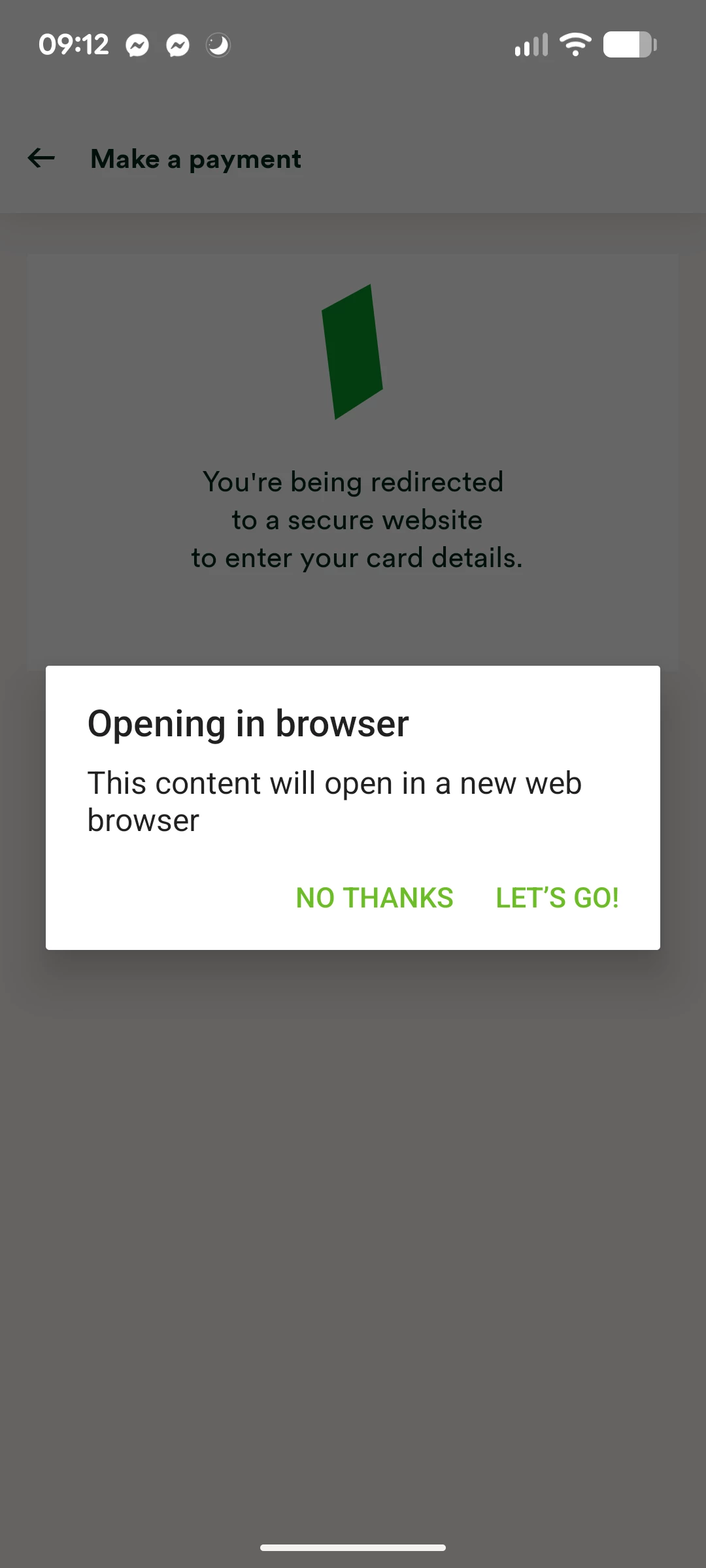
You’ll then need to click ‘let’s go’ to open a new browser:
You’ll then be directed to a screen where you can add in the amount you’d like to pay:
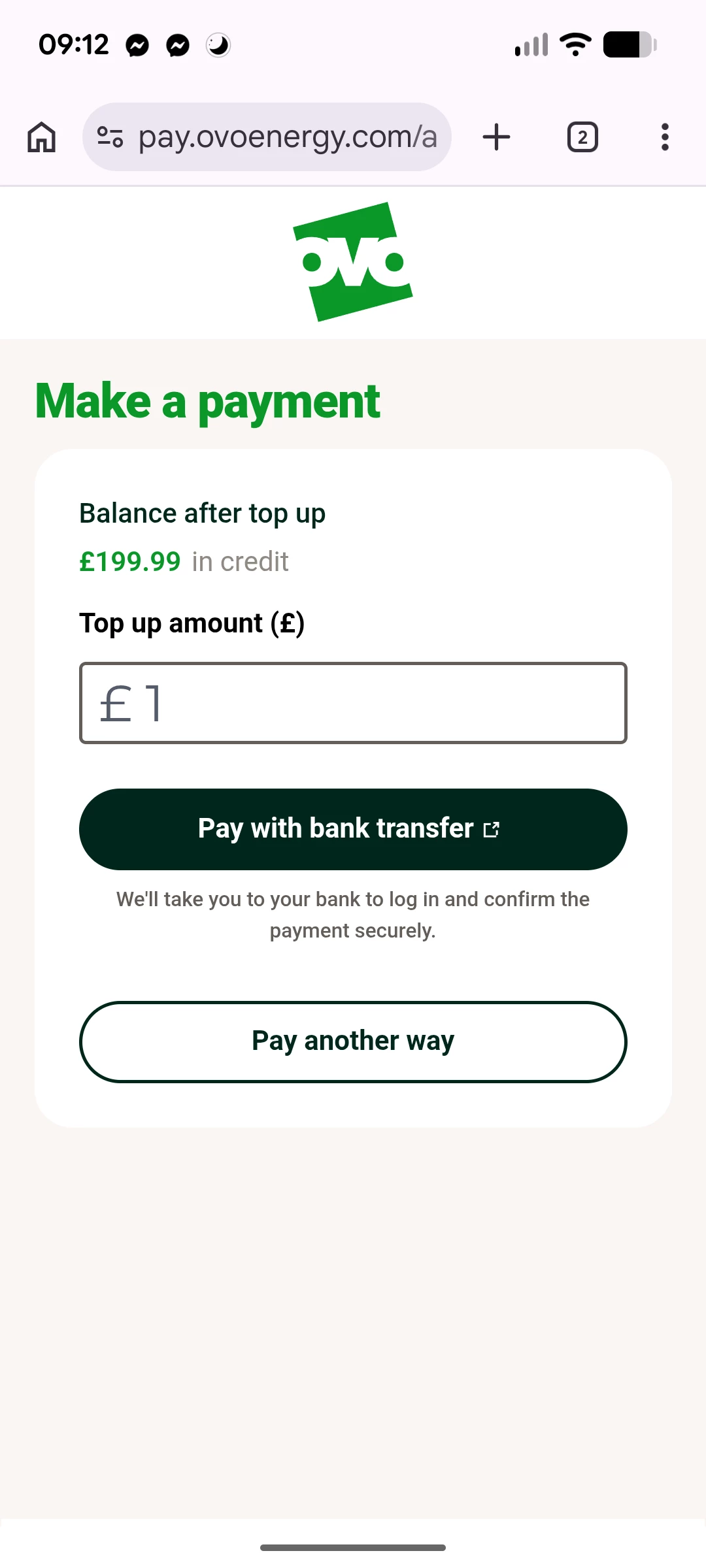
You can pick the amount you’d like to pay by entering a number in the box. If you click ‘Pay with bank transfer’ you’ll be directed to a third party site:
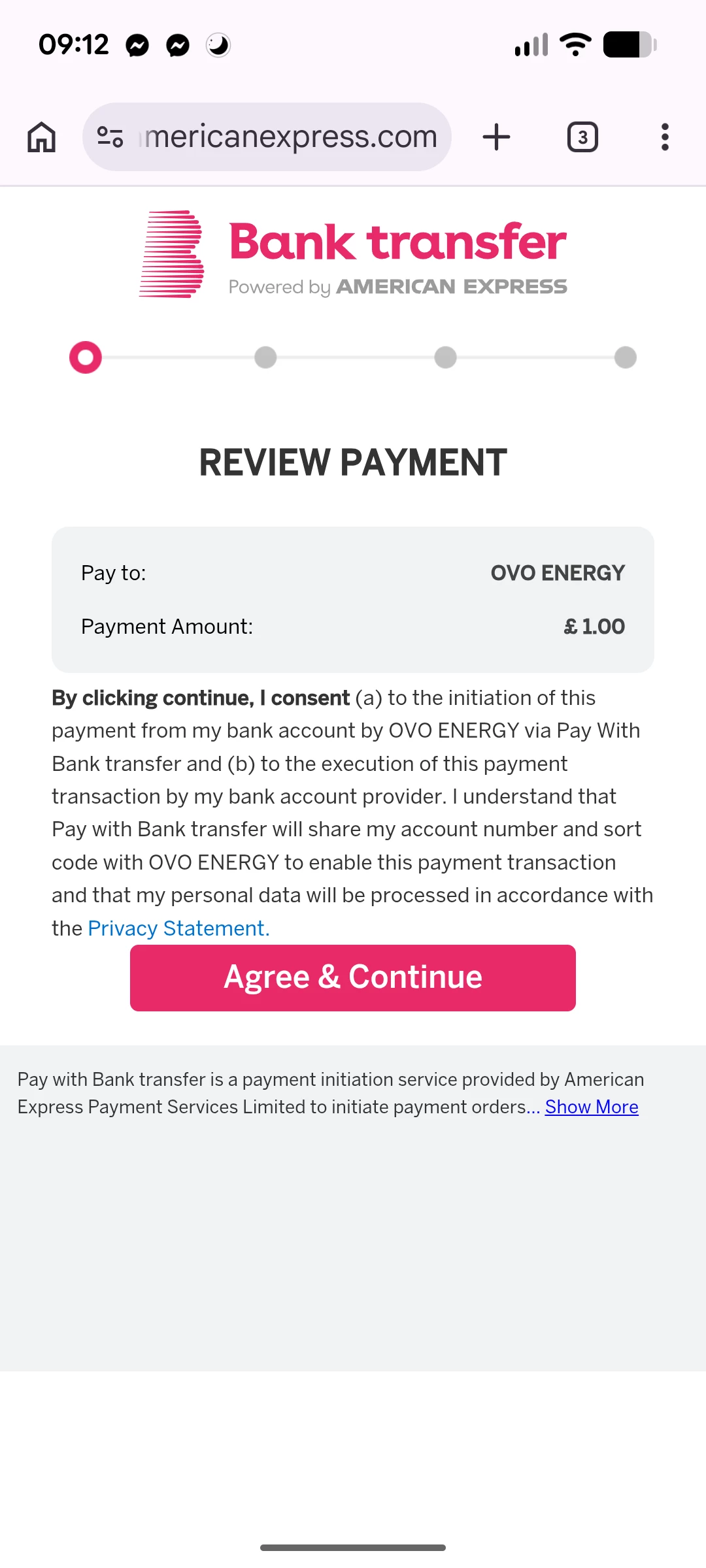
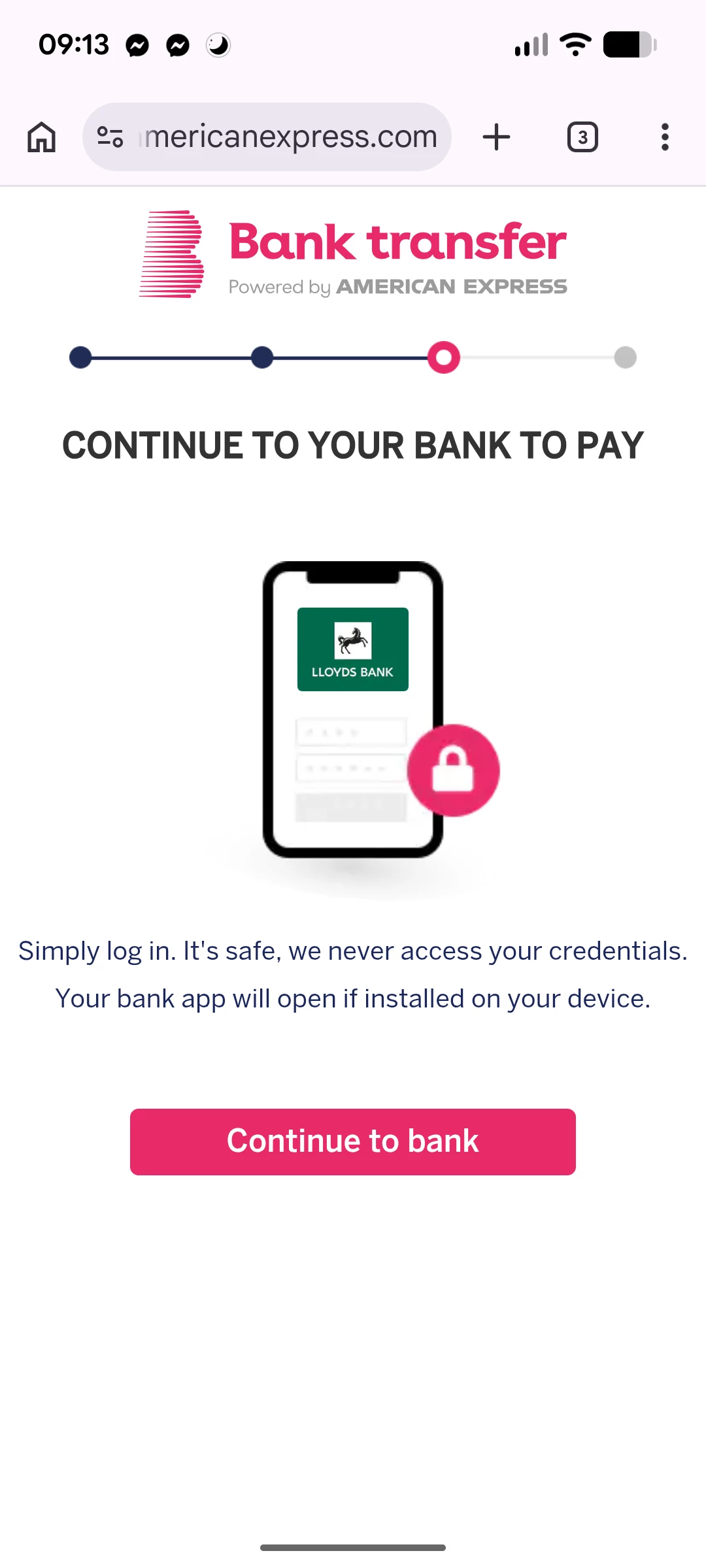
Check the amount, select ‘agree and continue’, and then select your bank account:
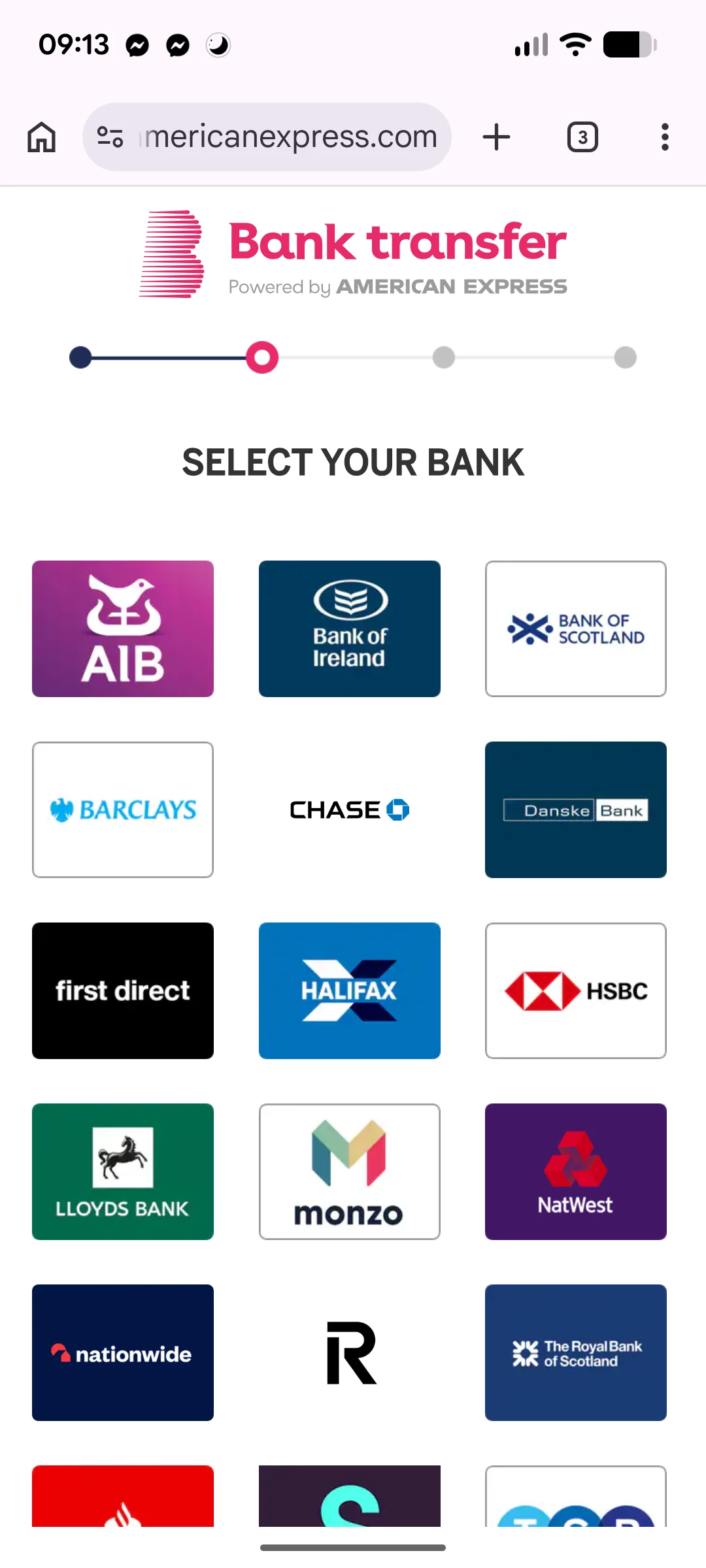
You can then select ‘continue to bank’, and then confirm the payment via your online banking app:
You can also select ‘Pay another way’, which will give you the option of making a card payment, or using Google Pay:
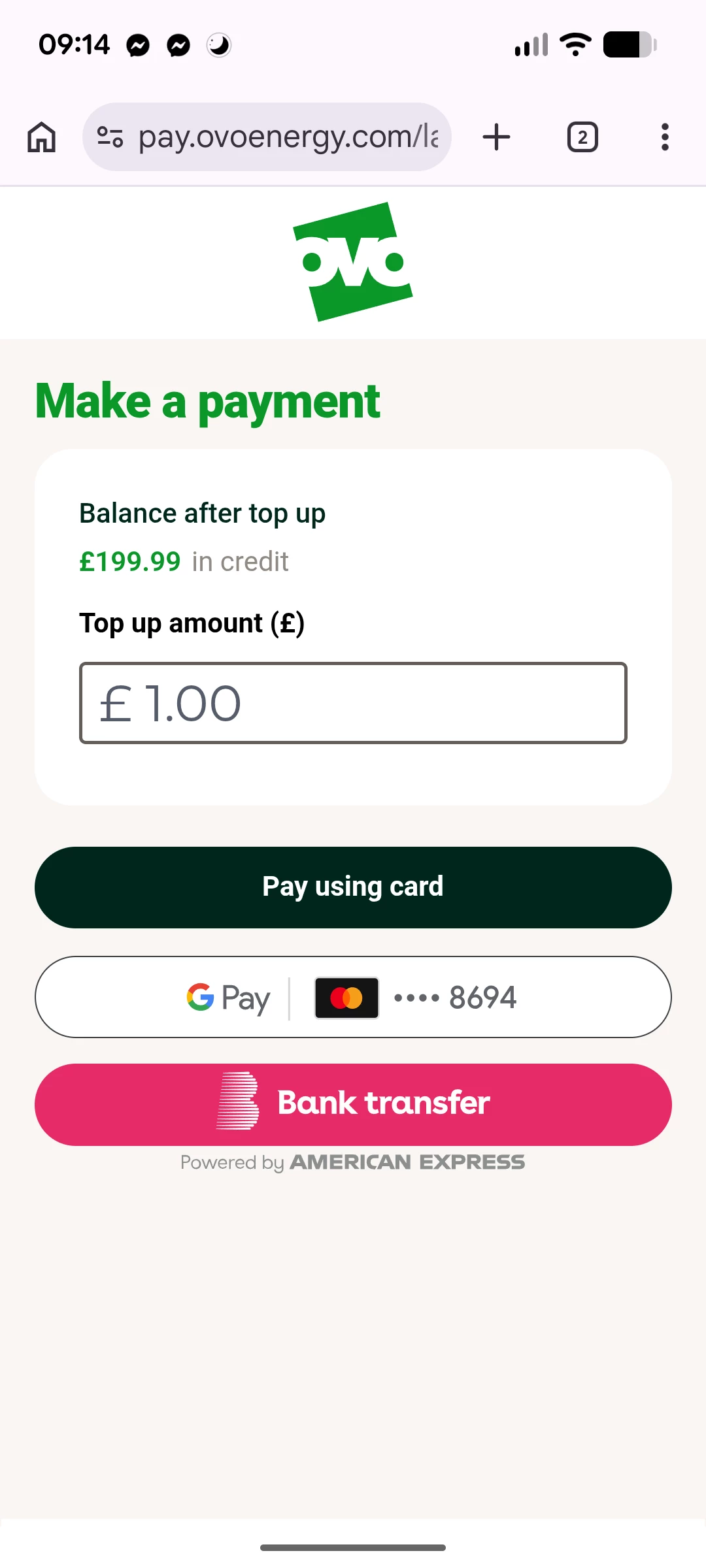
Once you’ve completed your payment via your chosen method you’ll be automatically directed to a payment confirmation page:
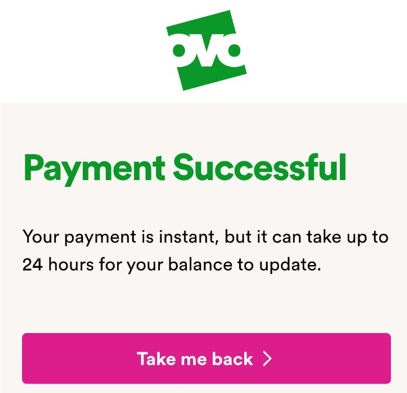
If you refresh your homepage, your new balance may be showing straight away, but you might have to wait 24 hours. Please note - we no longer send payment confirmation emails, so you’ll need to check your online OVO account balance / banking app to make sure the payment has been successful.
Job’s a good-un! Your balance is nicely topped up to cover your future energy costs. Don’t forget you’ll also be able to see this payment shown as a ‘CARD PAYMENT’ on your next monthly energy statement. 
Need more help?
This topic is now closed, so you won’t be able to reply here. If your question hasn’t been answered or you need more advice, feel free to ask the community — we’re here to help!
Give us your feedback!
Was this article helpful? Is our Library missing content? Share your anonymous feedback here and help us improve!