




How to tell us you're moving out on your online account

Updated on 20/08/26 by Ben_OVO
If you’re supplied by OVO and are moving to a new home, you can complete the move out process via your online account . We’ve run through the process in detail below.
On the homepage click on the ‘Moving home’ menu option to the left:
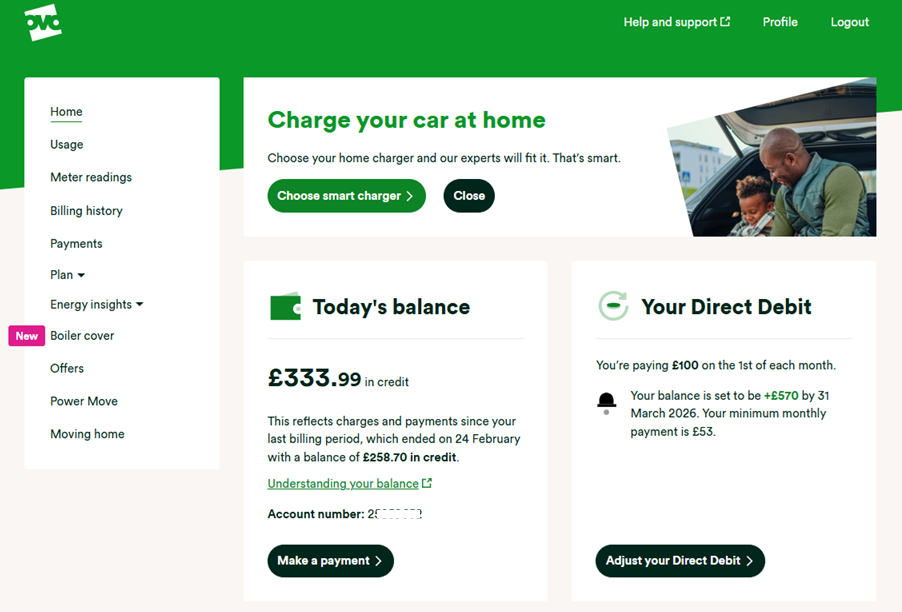
You’ll now see this screen:
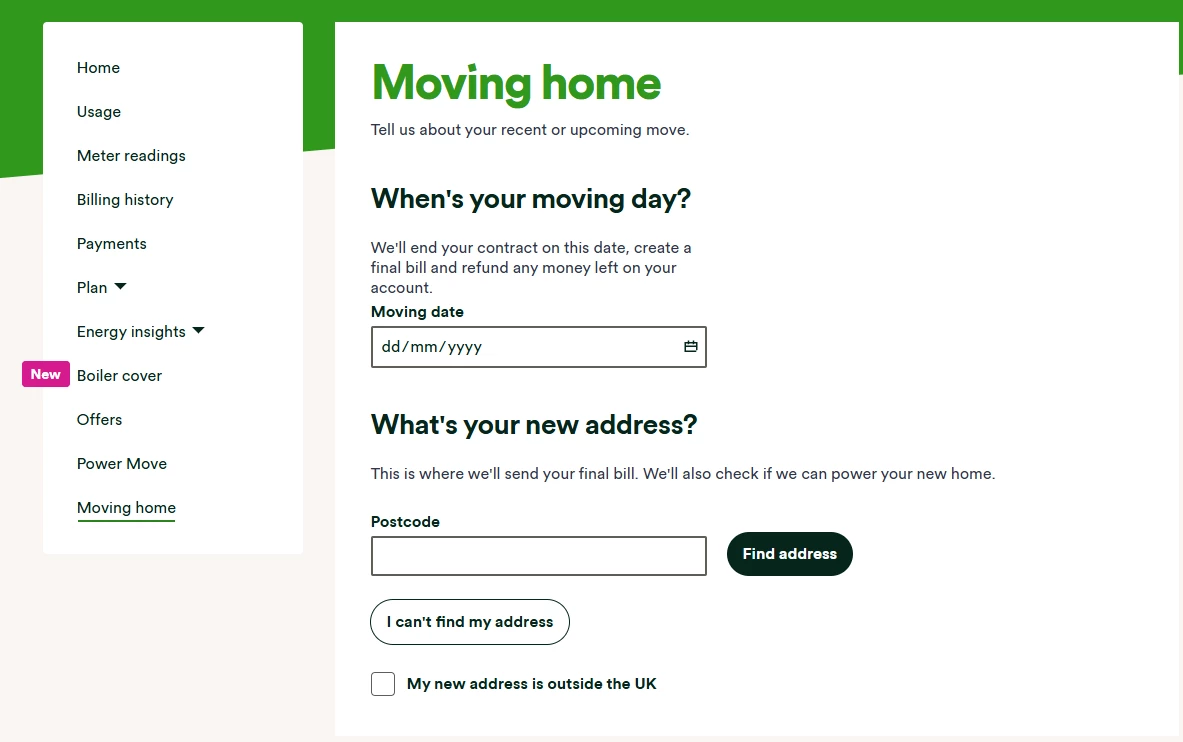
Enter your moving date (you can only do this if your moving date falls within the next 28 days, or you’ve already moved. You’ll then need to enter your postcode and click ‘find address to enter your new address. We need this so we can send you your final bill, and also offer to supply your new home.
You’l’ then see a confirmation screen:
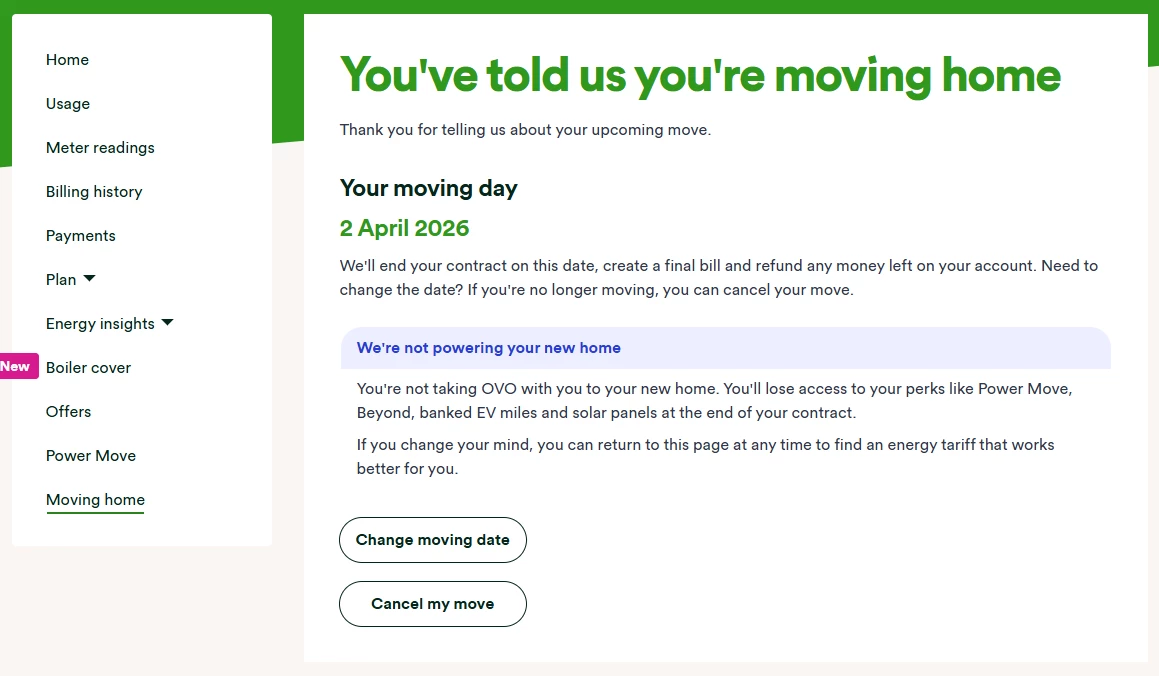
This screen will also give you the option to change the move date or cancel the move if you need.
If your move out date changes, and you’re unable to complete this process online, reach out to our Support Team to make sure we can get everything tidied up.
If you’re a Pay As You Go customer, check out the topic below:
Need more help?
This topic is now closed, so you won’t be able to reply here. If your question hasn’t been answered or you need more advice, feel free to ask the community — we’re here to help!
Give us your feedback!
Was this article helpful? Is our Library missing content? Share your anonymous feedback here and help us improve!