



How to fix login issues or error messages with your app or online account

Updated on 19/08/26 by Ben_OVO
Login Basics
You’ll only be able to log into your online account or app using your registered email address.
You’ll only be able to set one password per email address. This means that if you’ve got the same email address registered to multiple accounts, all these accounts will use the same password. This also means that password resets will affect all accounts under the same email address.
If you do have multiple accounts under different email addresses, our Support Team can link them all under the same email address and login.
If there's no email address registered to your OVO account, you won’t be able login. You can register your email address when you first join us, or by reaching out to the Support Team if you’re already a customer.
Logging in for the first time
OVO customers should complete these steps in the web portal (online account) first. Once complete, these details will be copied over and available for use in the OVO App.
- On the login page click ‘set up account’
- Enter your email address when prompted
- You’ll be sent a link from which to set a new password
- Once you’ve set the password you’ll have access to the online account
- You’ll then be able to log into the app using the same email address and password
If the above steps don’t work, go back into the password reset email, scroll down and select the option at the bottom of the reset email "open this email in your browser" (see the image below).
This should then allow you to follow the steps above to log into your account.

Error Message?
If you’re having an issue resetting your password and are using Outlook Live, Hotmail or BT Internet we are aware this may cause an error message when trying to set a password. If so please follow the steps above for opening the password reset email and clicking "open this email in your browser".
An error message saying, “Sorry, something went wrong. Please try again later” usually means there’s a technical issue which is linking a failed account to your details, for example if you’ve recently moved in and your new account hasn’t been fully activated. In this case reach out to our Support Team, they’ll be able to get things corrected, with the help of our Tech team if necessary.
Duplicate Emails
If you’ve got multiple accounts that aren’t linked under one email address then they’ll all need separate email addresses and passwords. Our Support Team can make things easier for you by linking the accounts, so that you can select between them under the same login.
You can reset your password on the login screen of your online account. If you’re logged in you’ll need to log out to access this screen:
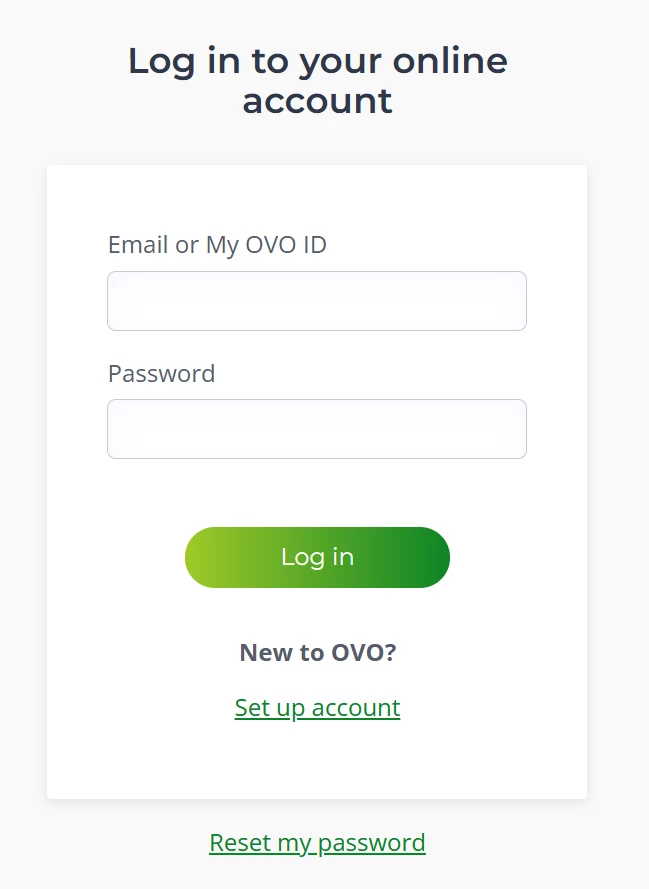
- There's no difference between ‘Set up account’ and ‘Reset my password’
- Password reset emails expire after six hours or if a newer password reset is requested within that time
- A reset email is only sent if the email address used matches a registered email address
- If multiple password reset emails are sent, only the most recent one is valid
The criteria for setting a password is:
-
At least 8 characters
-
At least 1 upper case letter
-
At least 1 lower case letter
-
At least 1 number
-
At least 1 special character (!?£@#$%)
Haven’t received a password reset email?
If you haven’t received the email then it’s usually caused by the following:
Your email inbox hasn’t refreshed
The email may have been delivered but hasn’t synced on your device / browser. This could be due to a network issue, or because your email inbox is set to refresh on a schedule, e.g. every 15 minutes. Try refreshing this manually.
The email has been filtered as junk/spam
You should also check that you haven’t accidentally marked us as ‘spam’ or blacklisted emails from hello@ovoenergy.com or noreply@ovoenergy.com.
You haven’t verified your email address
You’ll need to ask our Support Team to re-add your email address to your OVO account. You’ll then be sent an automated email containing a link to verify the email address. Once you’ve done this, you should be able to request a password reset email.
The email address you’ve got registered has recently been changed on our systems and hasn’t had time to update on your online account
If you've changed your registered email address it can sometimes take up to 24 hours to update on your account. In this case, try and request a password reset email the following day.
If none of the above is successful
Check you’re using the most recent version of the app (try deleting and re-downloading for Android and iOS).
Ensure you’re using a Google Chrome browser if logging in to your online account.
Try disabling any password managers that may be interfering with the login details you’re entering.
You should also try:
-
Logging in via the app if you can’t login via a browser (or vice-versa).
-
Using a different device or browser (Chrome is recommended).
-
Clear cache/cookies on browser.
-
Clear cache and app data then uninstall/reinstall the app.
-
Waiting a day for any changes you've made to update across all systems.
If you've followed all of these steps and you're confident there's still a login issue with your online account or app, contact the Support Team. If you can provide as much of the the following information as possible we’ll then be able to forward this on to our Tech team if required:
-
Mention all actions you have taken already.
-
The correct email address that you’d like to use.
-
Are you trying to login using the app or browser?
-
What device, OS and browser are you using?
-
Are there any specific error messages?
-
How long has this been occurring?
-
Relevant screenshots are always welcome and useful.
Hope we can get things sorted and you logged back in ASAP. 
You can find a collection of handy online account / app tutorial guides here:
Need more help?
This topic is now closed, so you won’t be able to reply here. If your question hasn’t been answered or you need more advice, feel free to ask the community — we’re here to help!
Give us your feedback!
Was this article helpful? Is our Library missing content? Share your anonymous feedback here and help us improve!