




Updated on 10/03/26 by Ben_OVO
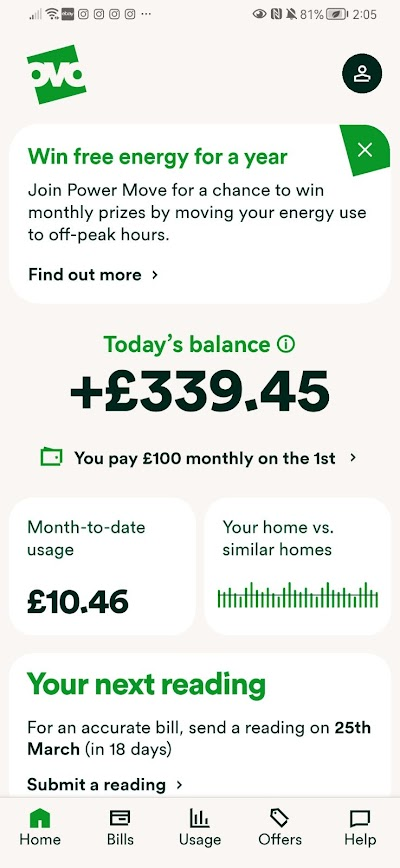
If you’d like to change your Direct Debit date you can get this updated on the OVO app (download for Android or iOS). Select ‘Bills’ at the bottom of the home page:
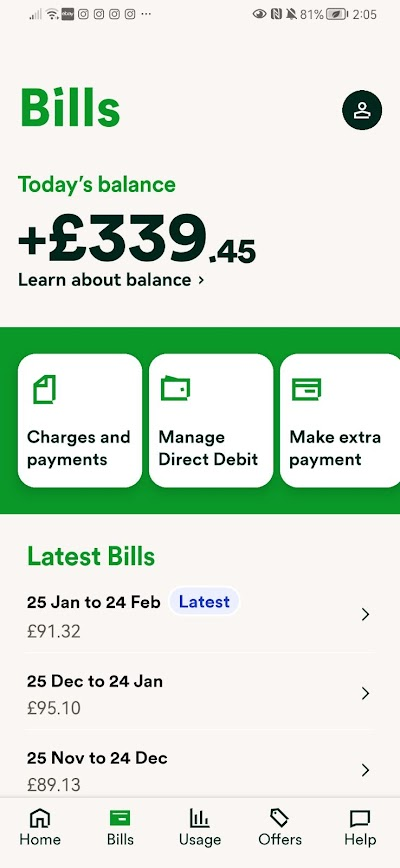
On the next screen click ‘Manage Direct Debit’.
The next screen gives a handy reminder of what date your payments are currently being taken, how much and from what bank account, as well as the option to ‘Change’, both the Monthly amount and the Payment date.
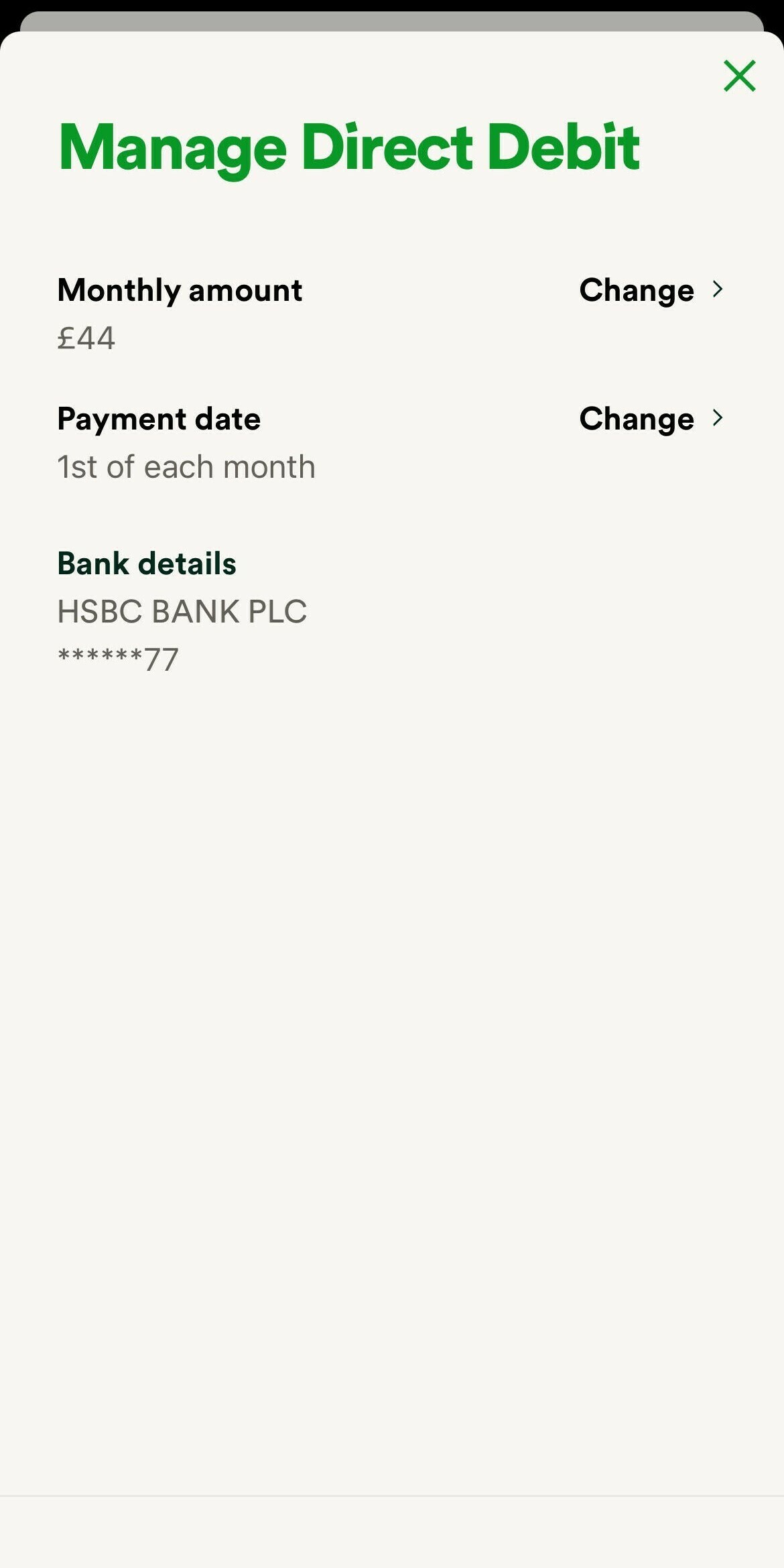
Simply click, ‘Change’ next to the Payment date section, to take you into the selection menu for a new date.
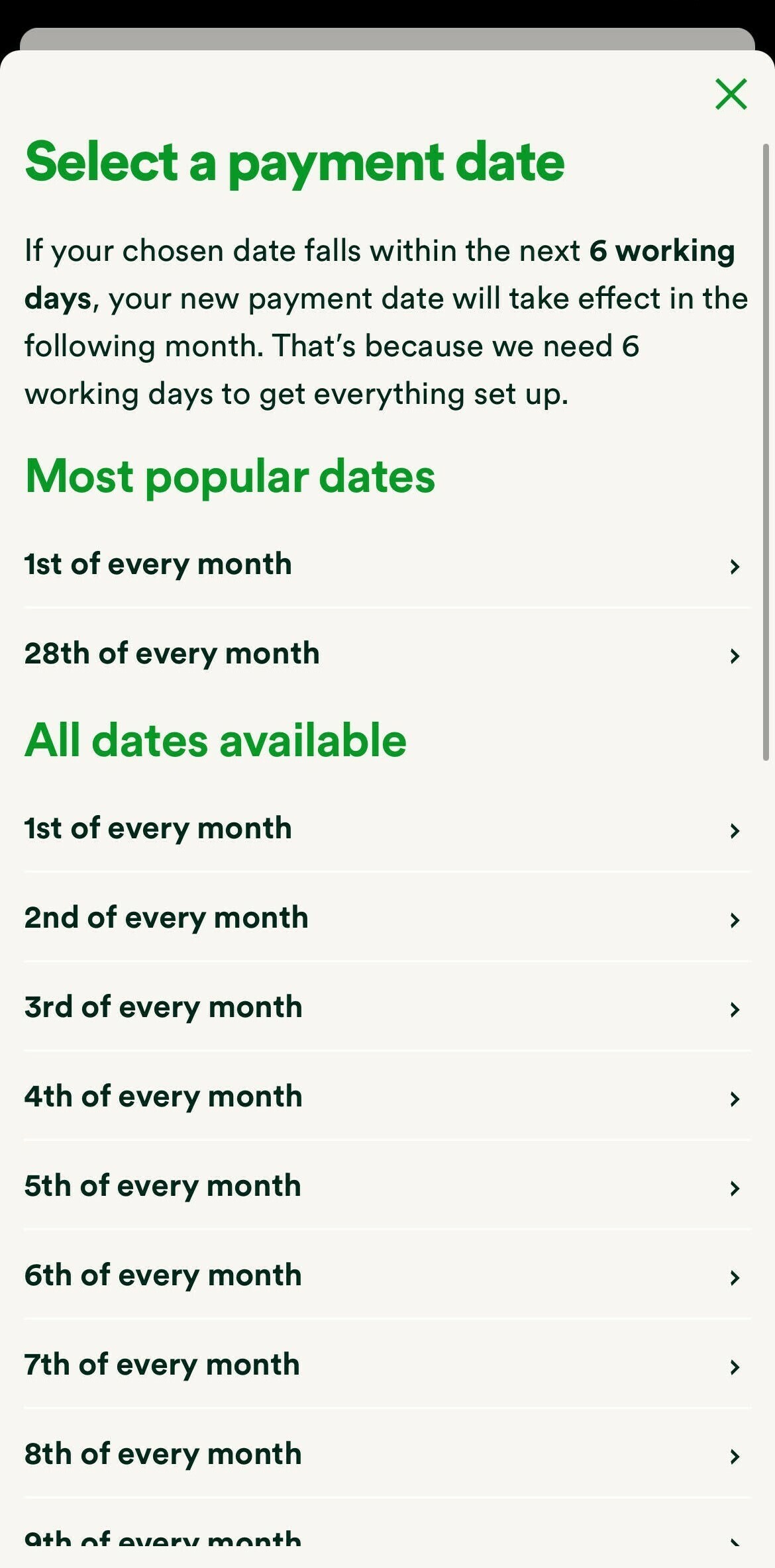
Click the drop-down menu to select the date you’d prefer your payment to be made. It’s worth bearing in mind that any changes made in the next 5 working days won’t take effect until next month.
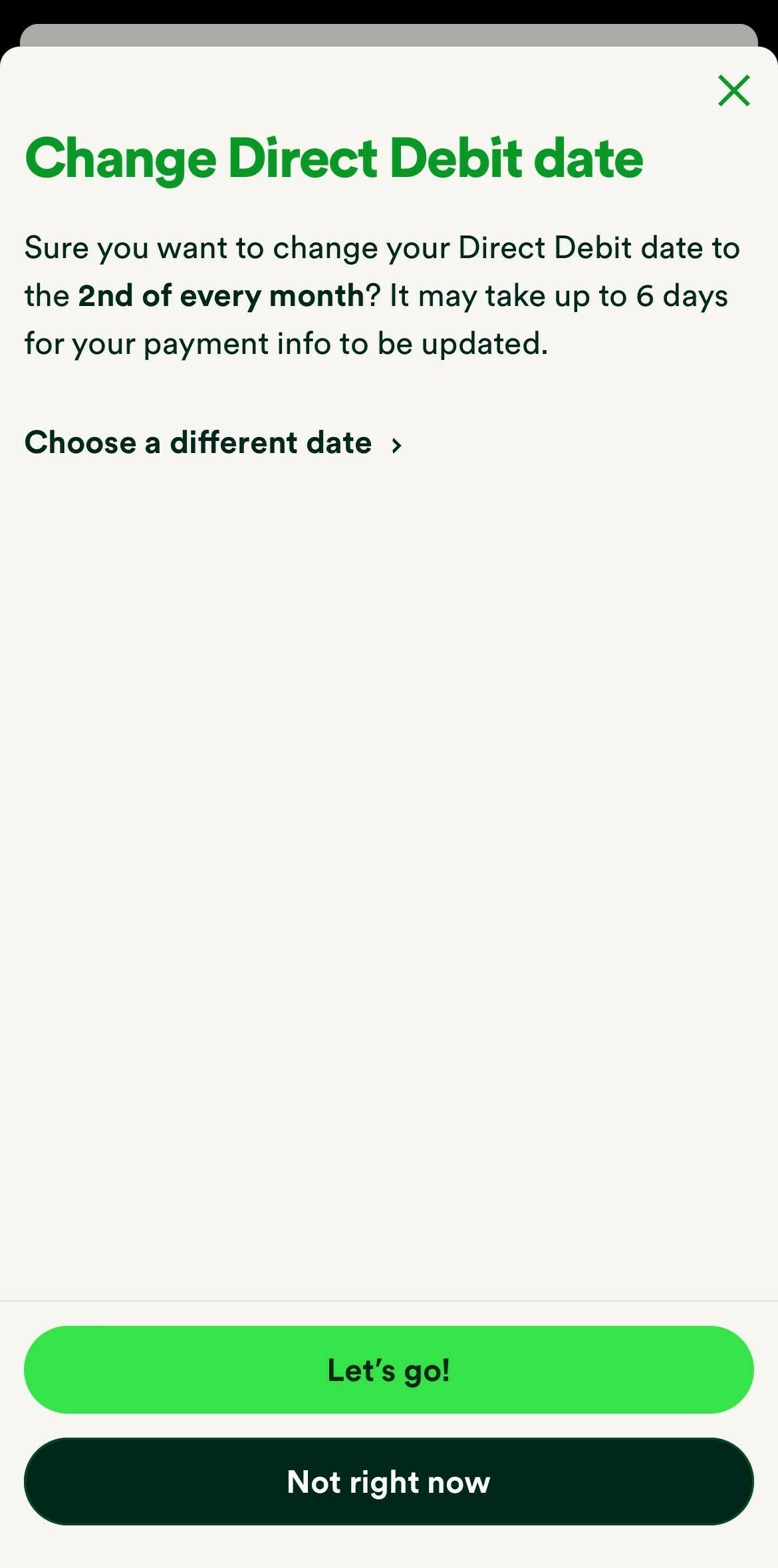
Once you’ve selected a new date and clicked ‘Let’s go!’, you’ll see the following message to confirm the update (date may vary).
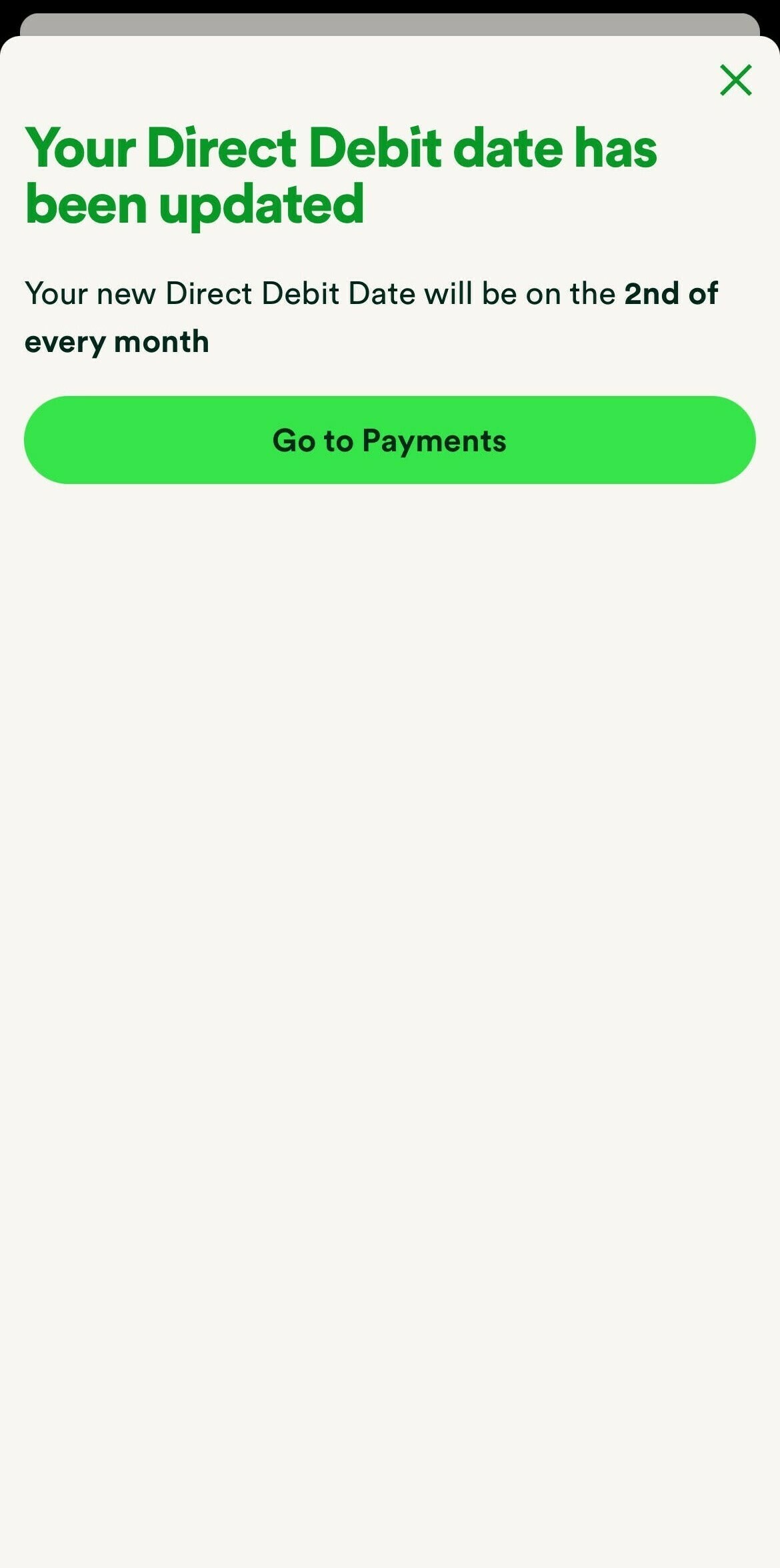
Here it confirms the date you selected, as well as your next scheduled payment date. These may be different if your next payment date falls on a weekend.
You’ll receive an email notifying you of this change and this will also be reflected on the Direct Debit info shown if you refresh your Homepage.
Changing your Direct Debit date via your online account
Most customers find it easiest to use the app. However, you’re also able to change your Direct Debit date via your online account. To do this click ‘Payments’ on the left-hand side of the home page, and then scroll down and click ‘Change Direct Debit date:
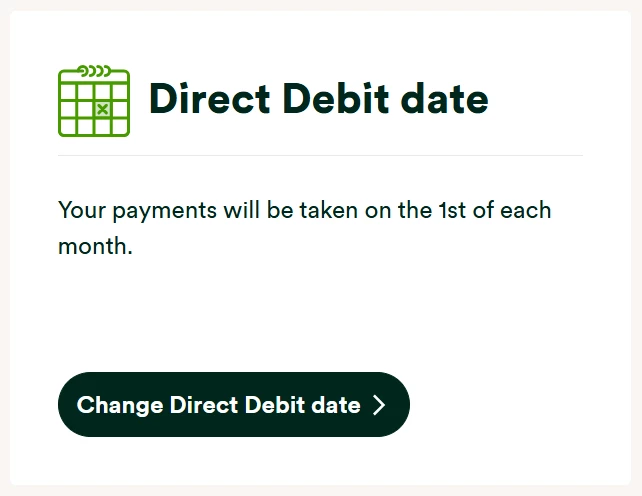
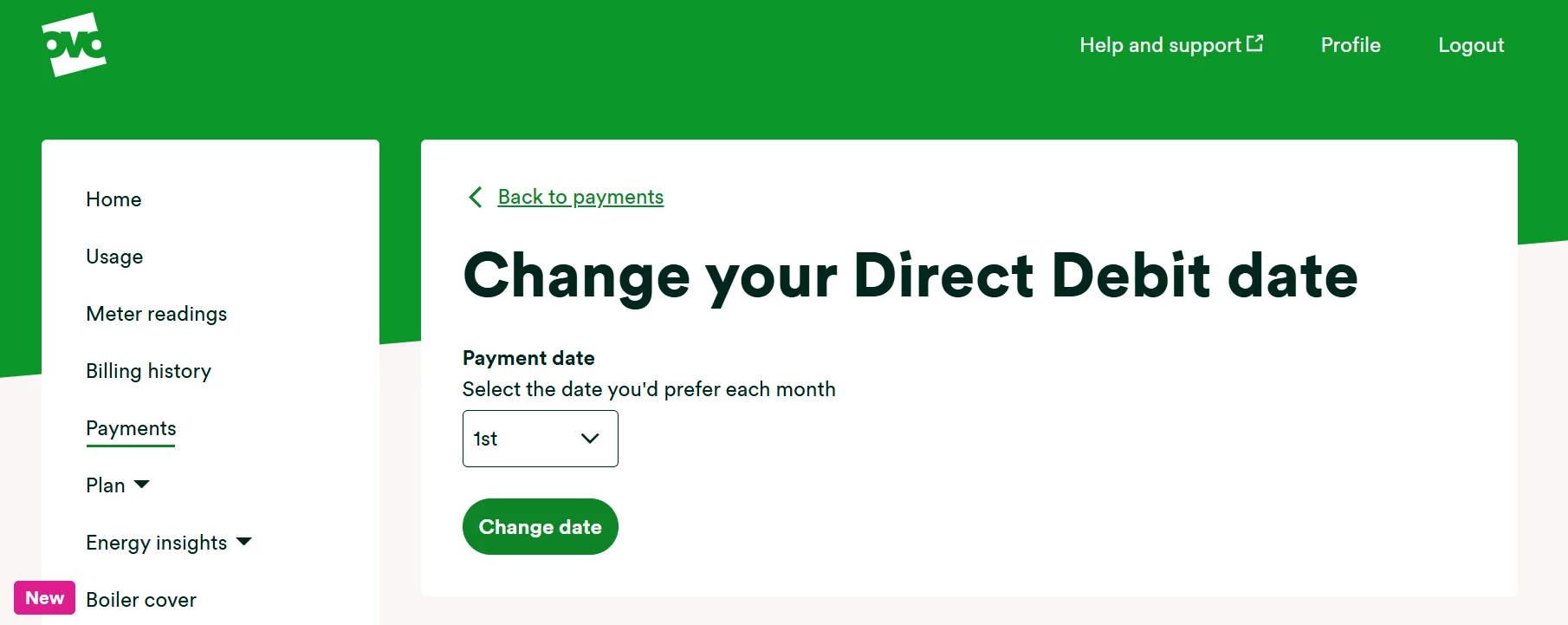
You’ll then be able to use the drop-down to select which date you’d like the Direct Debit to come out on:
If you’d like to find out more about Direct Debits with OVO, check out the topics below:
Need more help?
This topic is now closed, so you won’t be able to reply here. If your question hasn’t been answered or you need more advice, feel free to ask the community — we’re here to help!
Give us your feedback!
Was this article helpful? Is our Library missing content? Share your anonymous feedback here and help us improve!