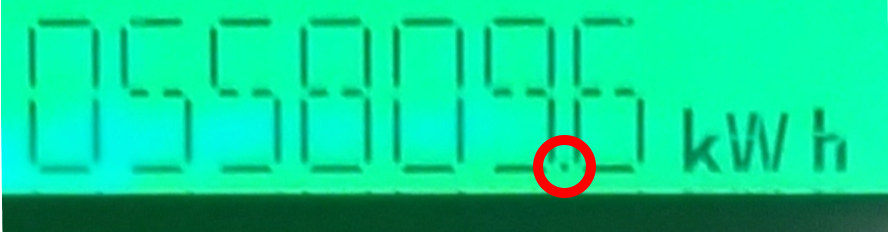


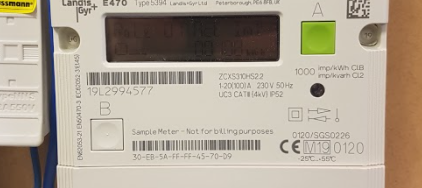


Updated on 09/04/26 by Ben_OVO
How to read different versions L + G electricity smart meters
Landis + Gyr don’t make things easy when it comes to working out whether your smart meter is SMETS1 or SMETS2. Thankfully one of our community members has already written a great guide to help you work that one out:
This guide will help you take a reading from one of these meters to submit on your online account or OVO app (download for Android or iOS).
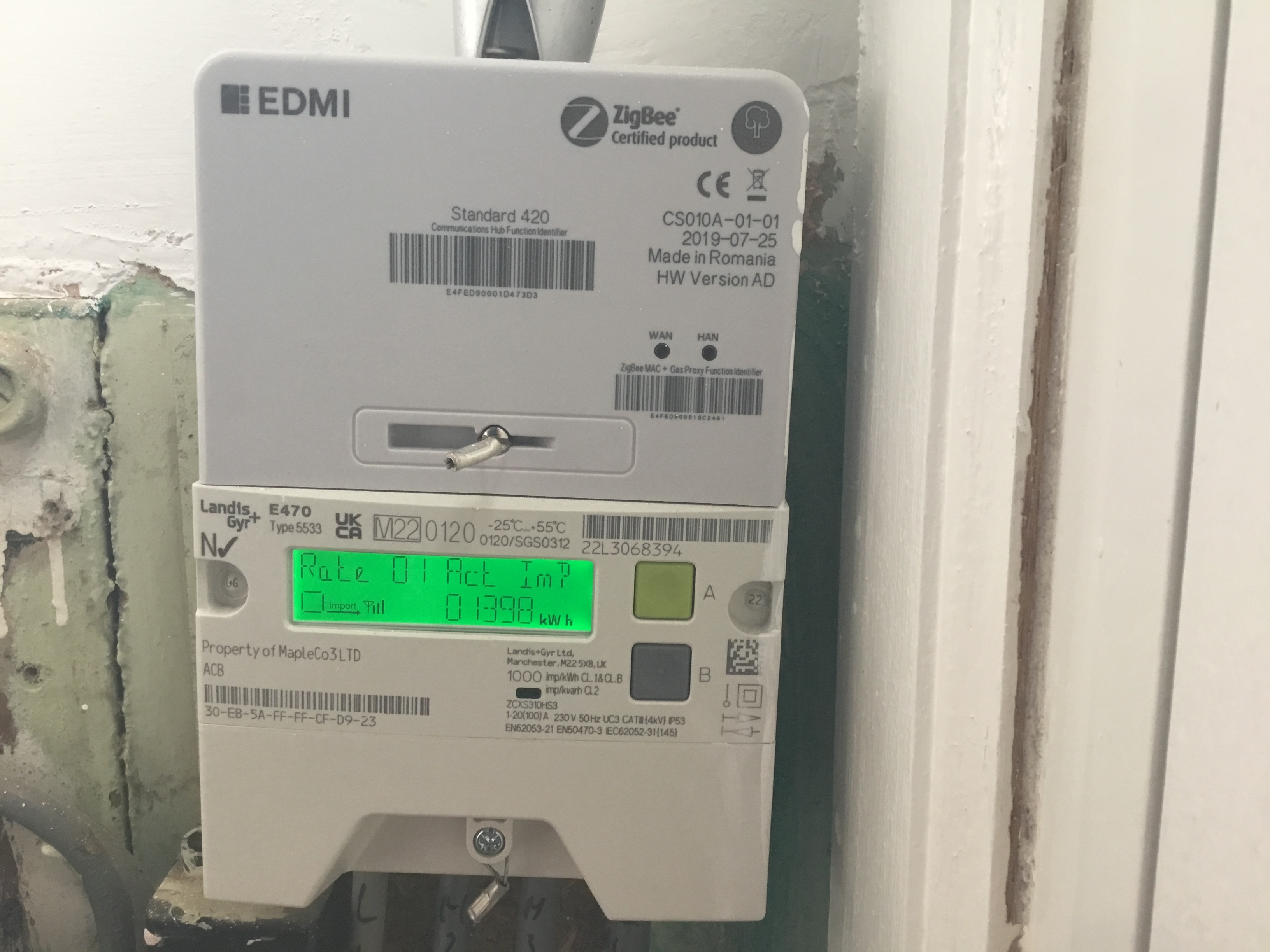
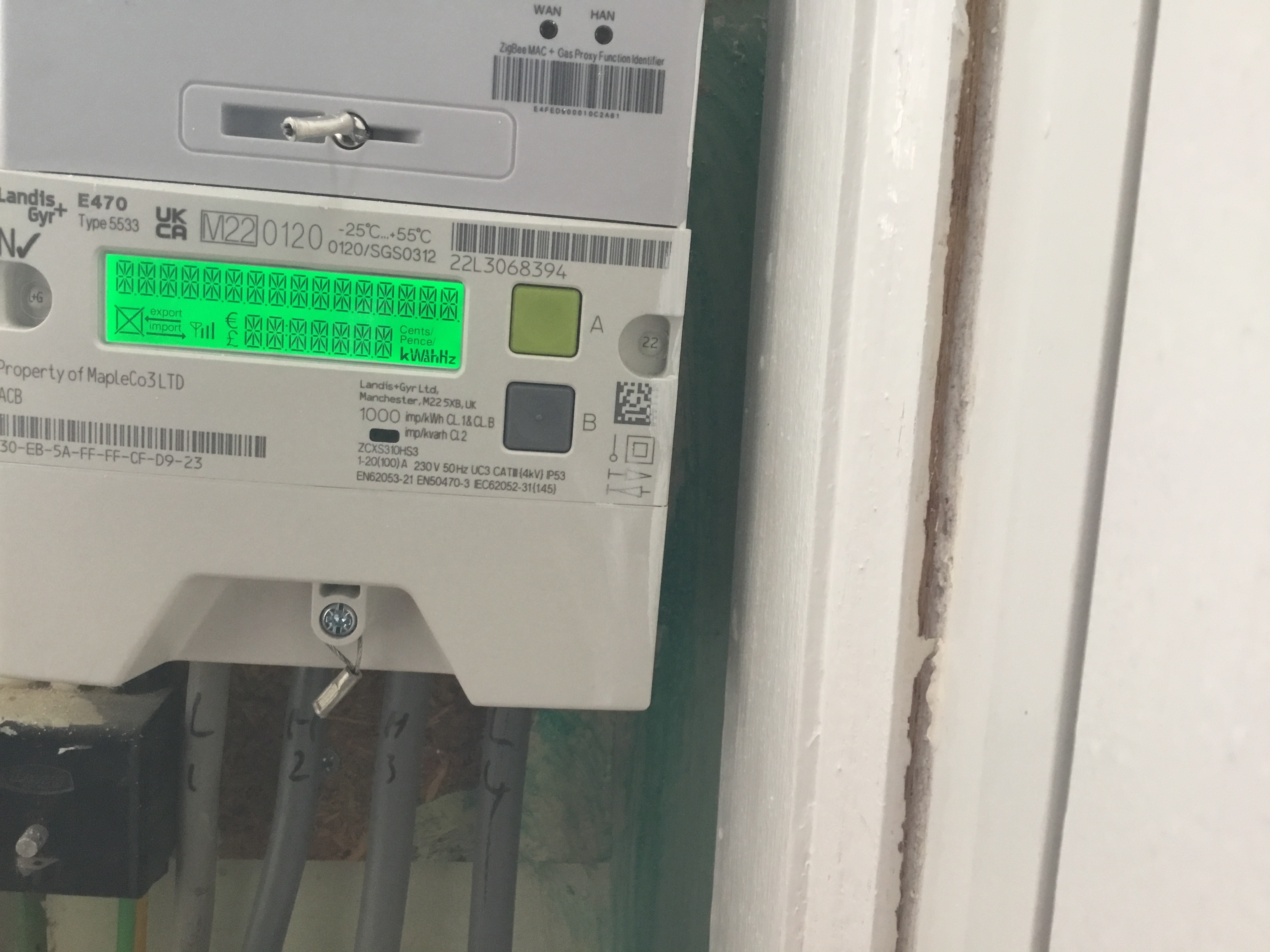
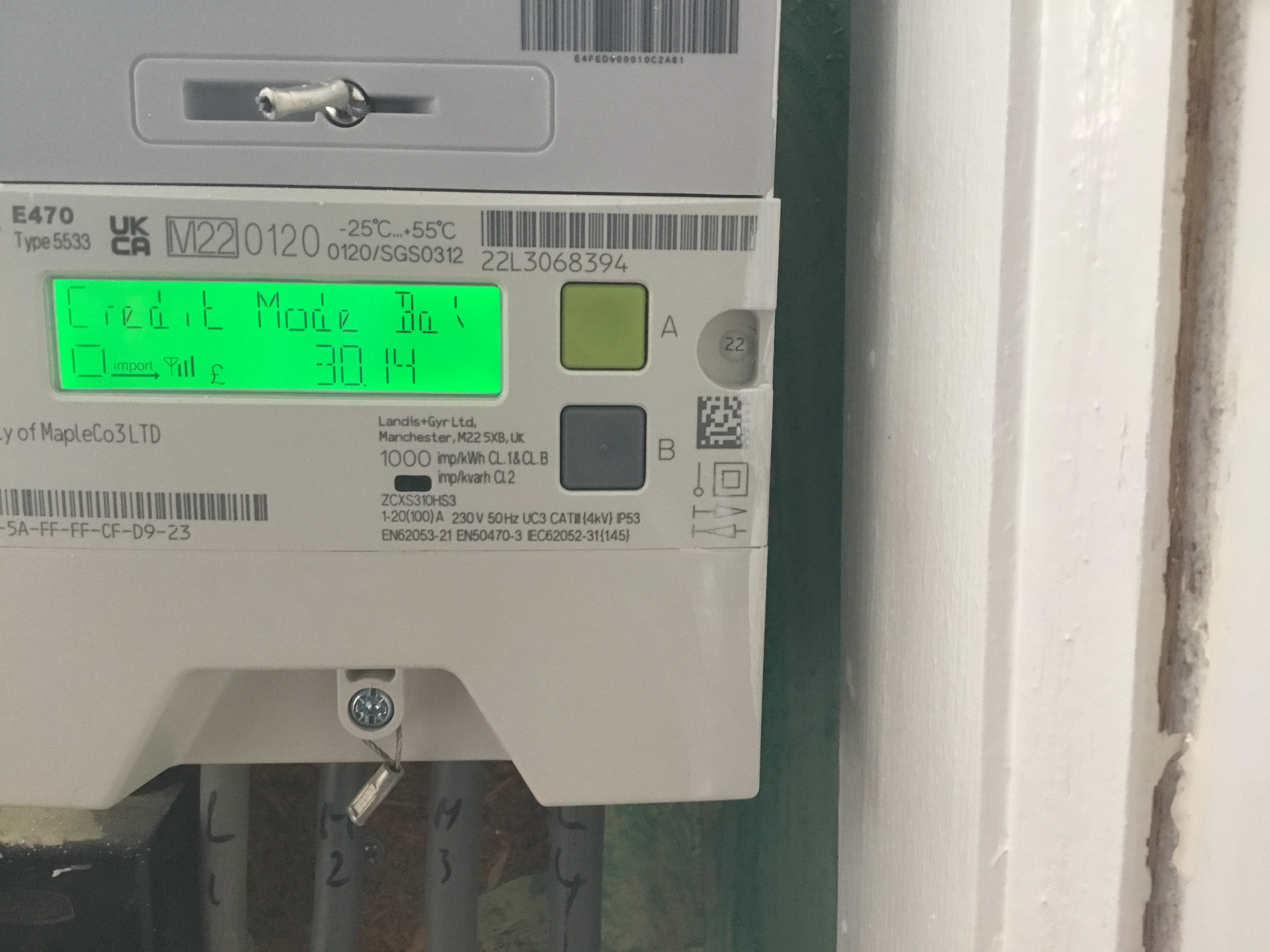
Have 2 square buttons, one directly above the other, like this?
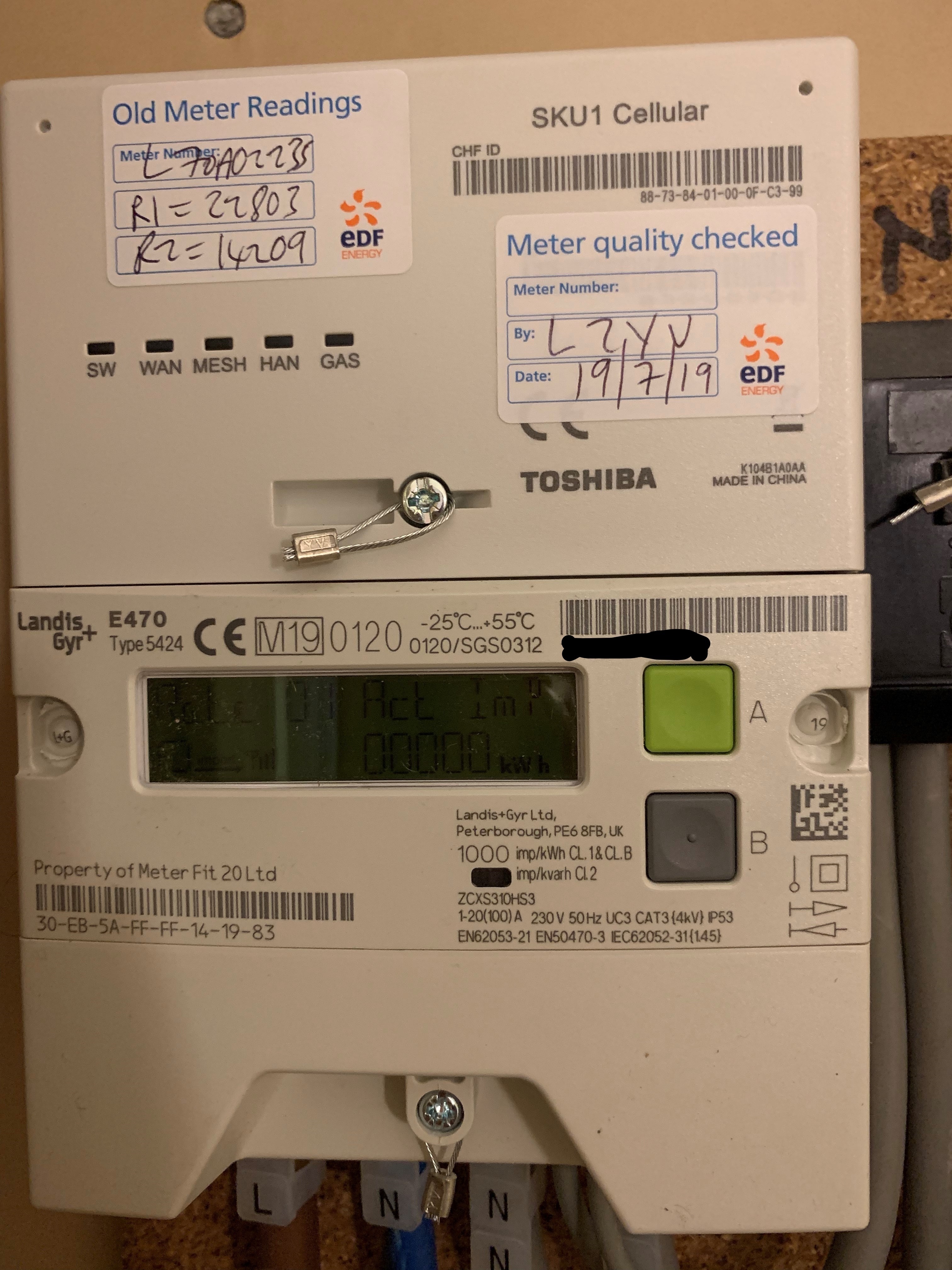
If you’ve got a single rate meter, you may notice that you’re reading is already showing on the default meter screen.
If you need to see it back-lit tap the ‘A’ button to scroll through the display options until you see ‘R01’. The reading will be shown in the bottom right of the screen.
If you’ve got a dual rate version of this meter press and hold down the ‘B’ button for roughly 5 - 10 seconds, then tap the ‘A’ button. This will toggle between the ‘R01’ reading and the ‘R02’ reading as demonstrated in this handy video:
How to read electric smart meter - Landis Gyr+ E470
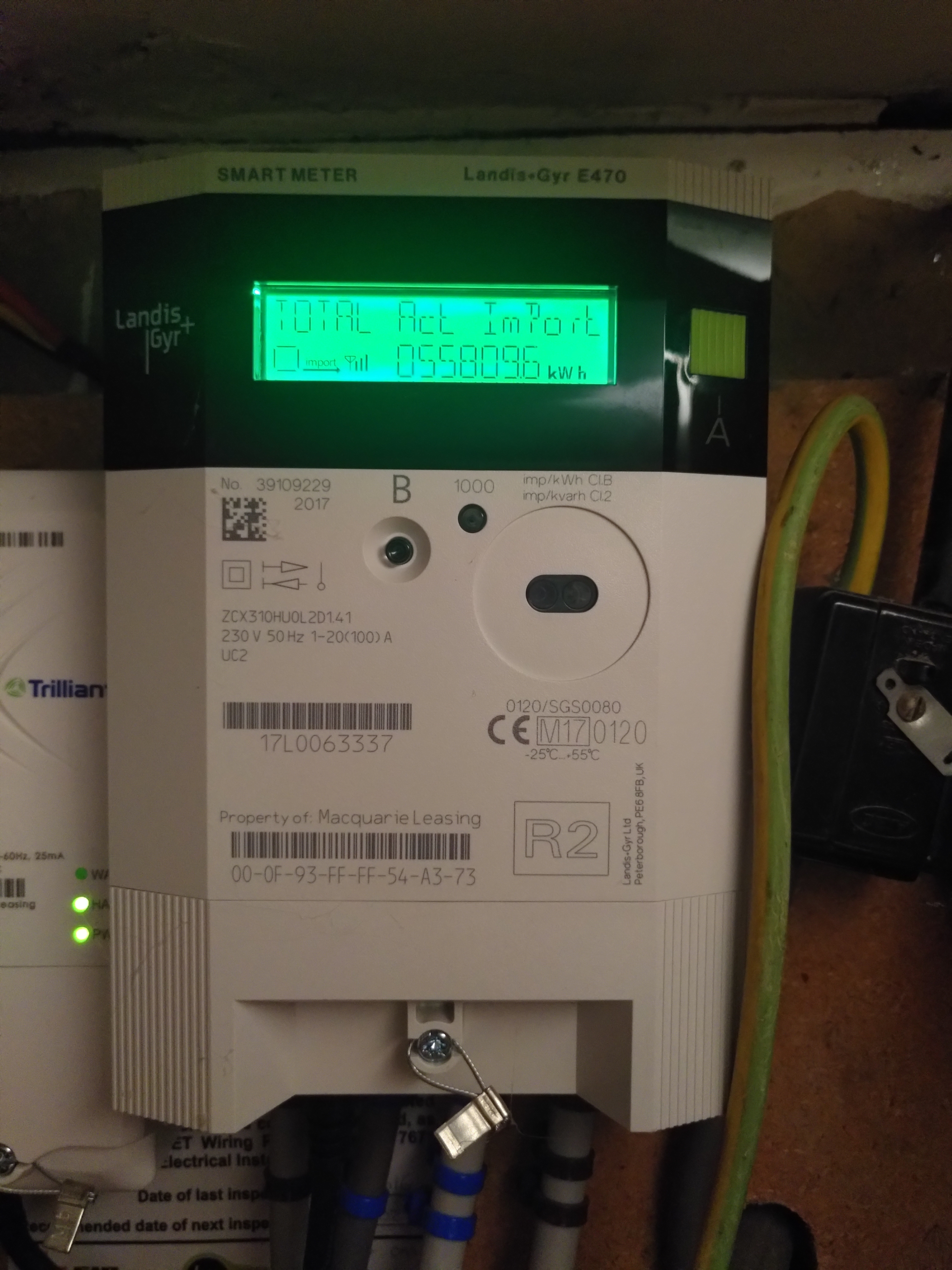
If your square buttons are spaced out in diagonally opposite corners like this:
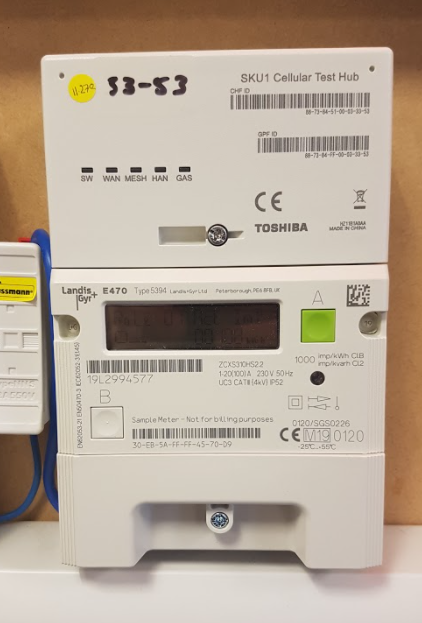
It may look slightly different but the process is the same:
Reading a Landis Gyr E470 Type 5394 Smart meter Electric Day and Night (Economy 7)
OVO customer but not got a smart meter yet? - Book today
Interested but not yet an OVO customer? - Check out our plans
Need more help?
This topic is now closed, so you won’t be able to reply here. If your question hasn’t been answered or you need more advice, feel free to ask the community — we’re here to help!
Give us your feedback!
Was this article helpful? Is our Library missing content? Share your anonymous feedback here and help us improve!