Updated on 04/12/25 by Ben_OVO
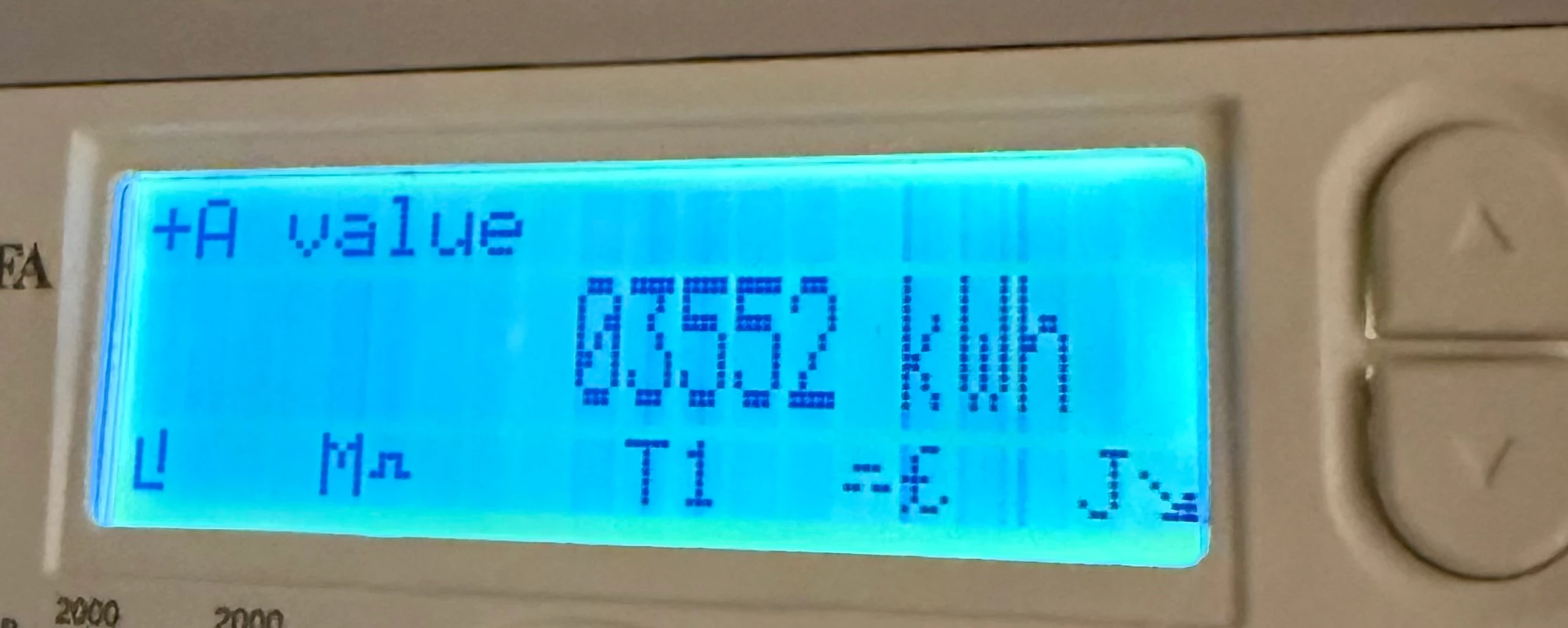
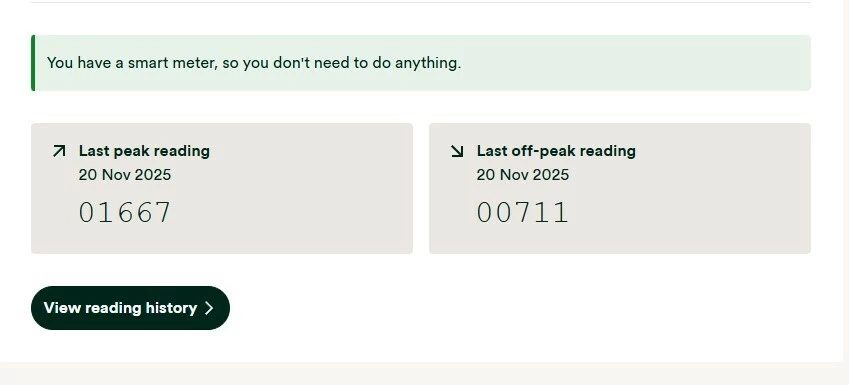
The first thing to check is that the Meter Serial Number shown just above You have a smart meter, so you don't need to do anything is the one actually printed on the front of the meter itself. It’s not at all uncommon for meters in new build estates to be assigned to the wrong property.
If that isn’t the problem, then check what other kWh readings your meter can display. I assume it’s an MA 120 or MA 120B. These are the instructions I found; sadly, there’s no guarantee that they will apply to your meter:
Follow these steps to read the two rates on your electricity meter:
- Press the top white button to open the menu
- Check the arrow on the screen is pointing to 'General Display' (if not, use the top and bottom white buttons to move the arrow up and down)
- Press and hold the top white button to select 'General Display'
- Press the bottom white button to move the arrow down to 'Tariff Matrix'
- Press and hold the top white button to select 'Tariff Matrix'
- Check the arrow is pointing to 'TOU Register' (if not, use the top and bottom white buttons to move the arrow up and down)
- Press and hold the top white button to select 'TOU Register'
- Write down the numbers under 'T01' (they'll be followed by 'kWh') – this is your Rate 1 reading
- Then write down the numbers under T02 – this is your Rate 2 reading.
Please come back and tell us whether you were able to follow these steps.
If the meter readings shown on your meter are different to those displayed on your online account / app / statements, you’ll need to get in contact with our Support Team. In this scenario, you may also find these guides helpful for trying to diagnose the issue: