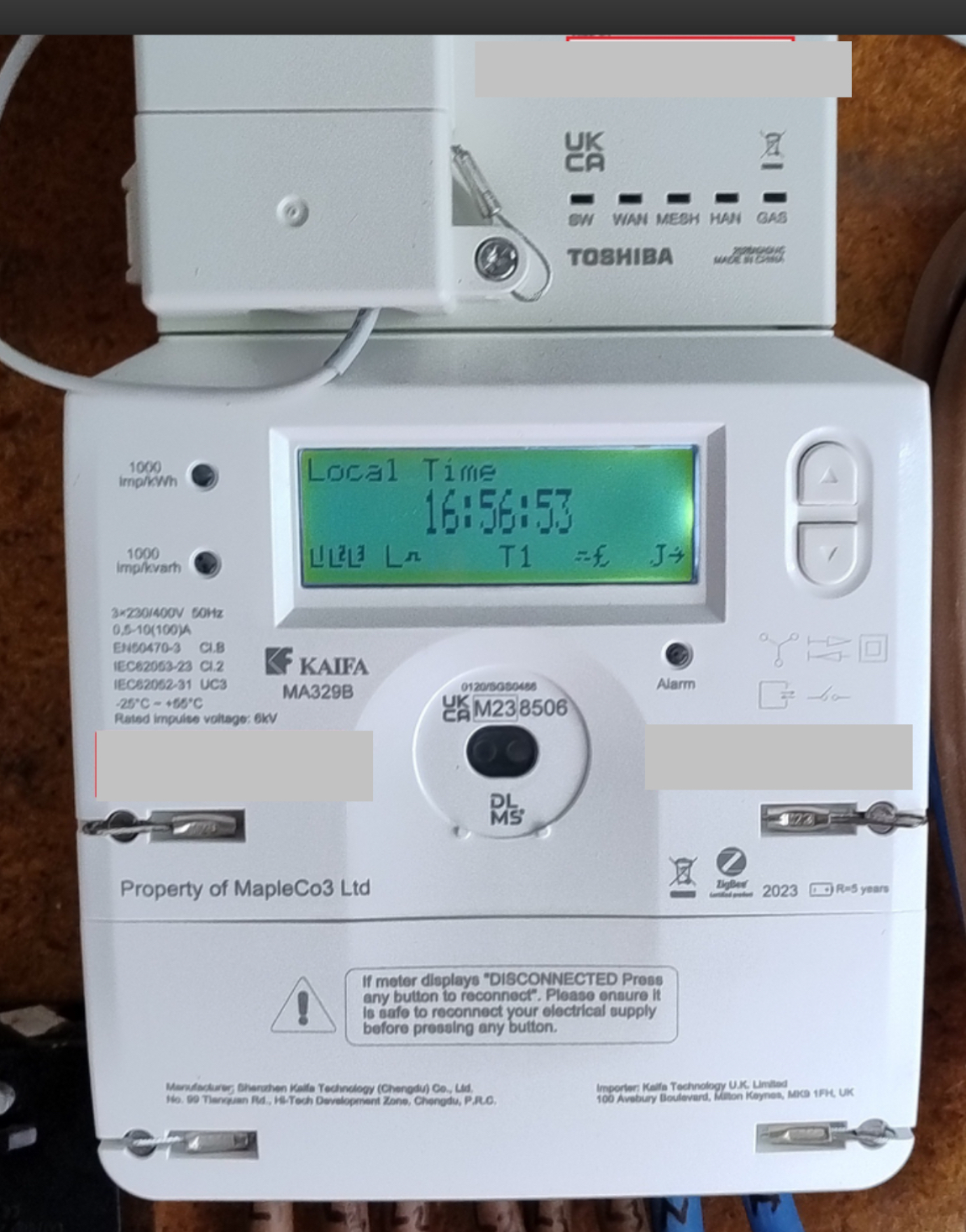
I managed to get some information from Kaifa about a different meter (MA120) which has a similar display/interface to the MA329B. I hope this description might be of use to others with this meter.
To add some information to the image posted by @BPLightlog. Let’s call the two user buttons on the rhs K1 (top ) and K2 (underneath). The meter can operate as a pre-payment meter, but I’ll ignore that aspect of the interface.
The display normally scrolls through a number of items with a 10 second delay between each item. The set of items is configurable by the supplier, but the default set is: Current Time, Current Date, +A value , -A value.
+A is the total accumulated number of units (kWh) used from the grid. If you have Economy 7 (dual rates), +A is the total of the peak and off-peak units used.
-A is the total accumulated number of units exported back to the grid (e.g. if you have solar equipment that can export excess solar).
Icons on the Display
Snipping a part of @BPLightlog’s image to explain the icons at the bottom of the display (from L to R):
L1, L2, L3: show the three phases are active. If you are exporting on one of those phases, the L for that phase will be blinking.
L: This is currently showing Low energy consumption. It could also be M or H for Medium or High consumption. I don’t know what the ranges are for those three bands of consumption.
The “hat” icon: This shows the state of the electricity supply. The version in the image above indicates the supply is on and normal. A version of this icon without the two vertical lines indicates either disconnected, or if flashing, ready to connect.
T1: This is indicating which tariff is in use (see later). The value could be T2 is you have dual rates.
The “hat” icon without the vertical lines before the £ sign: I don’t know what this represents.
£: Currency unit.
J: If on, the meter is connected to the network. If blinking, the meter is joining the network. If the J is replaced by a blinking S, the meter is searching for the network.
->: This can be pointing in a number of directions. Taking @BPLightlog’s reply to a related topic, the arrow is something to do with information about a vector parameter for the supply (active, reactive, ...), and I suspect is not of interest to the home user.
User Keys K1 and K2:
A short press is pressing the key for less than 2 seconds. A long press is greater than 2 seconds.
K1: Short press: 1st press - activate LCD backlight; 2nd press - change from Scroll mode to Menu mode. Each press after this will move the cursor up one line.
K1: Long press: In Menu mode, selects the item being pointed to by the cursor >. Return back to the previous level when cursor is on “Return” item in menu.
K2: Short press: 1st press - activate LCD backlight; 2nd press - change from Scroll mode to Menu mode. Each press after this will move the cursor down one line.
Taking Total Accumulated Energy Use Meter Readings from the Meter
These are the +A and -A readings discussed earlier and that appear during the automatic scroll through items. To read them from the meter:
When the CD backlight is on and items are scrolling, short press K1. This will enter the menu system and display a list of items.
With the cursor (>) next to item >General Display, long press K1 to enter the menu system associated with this item.
With the cursor next to item >Basic Data, long press K1 to enter this item.
The +A value is then displayed, i.e. the current accumulated energy imported from the grid (in kWh) since the meter was installed.
Short press K2 to move down to the -A value, i.e. the energy exported since the meter was installed.
There are other data items, but not relevant to this section.
When you wish to exit, long press K1 which will return you to >Basic Data. Scroll down using K2 until you get to the menu item >Return. Long press K1 will activate this item (i.e. return you to the previous level, which was the auto scrolling). Alternatively, the menu system will eventually time out and return to scroll mode.
Taking Economy 7 Energy Use Meter Readings from the Meter
When the CD backlight is on and items are scrolling, short press K1. This will enter the menu system and display a list of items.
With the cursor (>) next to item >General Display, long press K1 to enter the menu system associated with this item.
Press K2 to move the cursor down to item >Tariff Matrix.
With the cursor next to item >Tariff Matrix, long press K1 to enter this item.
With the cursor next to item >TOU Register long press K1. You will then see a list of the TOU (Time of Use) registers for each rate. Economy 7 will just use T1 and T2. In my system T01 is Peak usage, T02 is Off-peak usage. The readings show the total accumulated energy use (kWh) for that rate.
When you wish to exit, long press K1 which will return you to >Tariff Matrix. Scroll down using K2 until you get to the menu item >Return. Long press K1 will activate this item and return you to >Basic Data. Scroll down using K2 until you get to the menu item >Return. Long press K1 will activate this item (i.e. return you to the previous level, which was the auto scrolling). Alternatively, the menu system will eventually time out and return to scroll mode.
The 329B is a 3 phase meter so not a common install.
It is the Energy Supplier's responsibility to write user manuals for the products they supply, and this way it can be branded with their logo and contain their contact information.
That's an interesting take on things.
Doing it that way means that you will end up with different (but similar) user manuals from each supplier rather than one 'standard' user manual.
You can see why they do it - it costs Kaifa nothing, whereas each supplier then has to pay someone to produce and maintain their own version of a user manual. (And it looks like no supplier has done that yet for the MA329b).
I agree with @Nukecad this is a new take for me. I’ve never heard of a product manufacturer telling suppliers to create manuals before or referencing NDA agreements. I’ve reached out to one of our engineer team leaders @Lukepeniket_OVO who’s going to take a look to see if they can find one for you.
The repository at SmartMe is incomplete, but often helpful. I see they’ve added the Aclara SGM 1400 series manual at some stage - it wasn’t there when I needed it last year. Their Kaifa collection is pretty sparse.
Noel | I have no official status; I'm just a volunteer who comes here to help other customers. My gear: Aclara SGM 1416-B Electricity-only E7 meter; Chameleon IHD3-PPMID-AAA | It may look as if I know what I’m talking about, but don’t let that fool you. |
Thanks for coming back with an update. We appreciate you trying.
A
Anonymous
Best Answer
Oct 12, 2024 3:45 PM UTC
Updated on 23/10/26 by Ben_OVO
I managed to get some information from Kaifa about a different meter (MA120) which has a similar display/interface to the MA329B. I hope this description might be of use to others with this meter.
To add some information to the image posted by @BPLightlog. Let’s call the two user buttons on the rhs K1 (top ) and K2 (underneath). The meter can operate as a pre-payment meter, but I’ll ignore that aspect of the interface.
The display normally scrolls through a number of items with a 10 second delay between each item. The set of items is configurable by the supplier, but the default set is: Current Time, Current Date, +A value , -A value.
+A is the total accumulated number of units (kWh) used from the grid. If you have Economy 7 (dual rates), +A is the total of the peak and off-peak units used.
-A is the total accumulated number of units exported back to the grid (e.g. if you have solar equipment that can export excess solar).
Icons on the Display
Snipping a part of @BPLightlog’s image to explain the icons at the bottom of the display (from L to R):
L1, L2, L3: show the three phases are active. If you are exporting on one of those phases, the L for that phase will be blinking.
L: This is currently showing Low energy consumption. It could also be M or H for Medium or High consumption. I don’t know what the ranges are for those three bands of consumption.
The “hat” icon: This shows the state of the electricity supply. The version in the image above indicates the supply is on and normal. A version of this icon without the two vertical lines indicates either disconnected, or if flashing, ready to connect.
T1: This is indicating which tariff is in use (see later). The value could be T2 is you have dual rates.
The “hat” icon without the vertical lines before the £ sign: I don’t know what this represents.
£: Currency unit.
J: If on, the meter is connected to the network. If blinking, the meter is joining the network. If the J is replaced by a blinking S, the meter is searching for the network.
->: This can be pointing in a number of directions. Taking @BPLightlog’s reply to a related topic, the arrow is something to do with information about a vector parameter for the supply (active, reactive, ...), and I suspect is not of interest to the home user.
User Keys K1 and K2:
A short press is pressing the key for less than 2 seconds. A long press is greater than 2 seconds.
K1: Short press: 1st press - activate LCD backlight; 2nd press - change from Scroll mode to Menu mode. Each press after this will move the cursor up one line.
K1: Long press: In Menu mode, selects the item being pointed to by the cursor >. Return back to the previous level when cursor is on “Return” item in menu.
K2: Short press: 1st press - activate LCD backlight; 2nd press - change from Scroll mode to Menu mode. Each press after this will move the cursor down one line.
Taking Total Accumulated Energy Use Meter Readings from the Meter
These are the +A and -A readings discussed earlier and that appear during the automatic scroll through items. To read them from the meter:
When the CD backlight is on and items are scrolling, short press K1. This will enter the menu system and display a list of items.
With the cursor (>) next to item >General Display, long press K1 to enter the menu system associated with this item.
With the cursor next to item >Basic Data, long press K1 to enter this item.
The +A value is then displayed, i.e. the current accumulated energy imported from the grid (in kWh) since the meter was installed.
Short press K2 to move down to the -A value, i.e. the energy exported since the meter was installed.
There are other data items, but not relevant to this section.
When you wish to exit, long press K1 which will return you to >Basic Data. Scroll down using K2 until you get to the menu item >Return. Long press K1 will activate this item (i.e. return you to the previous level, which was the auto scrolling). Alternatively, the menu system will eventually time out and return to scroll mode.
Taking Economy 7 Energy Use Meter Readings from the Meter
When the CD backlight is on and items are scrolling, short press K1. This will enter the menu system and display a list of items.
With the cursor (>) next to item >General Display, long press K1 to enter the menu system associated with this item.
Press K2 to move the cursor down to item >Tariff Matrix.
With the cursor next to item >Tariff Matrix, long press K1 to enter this item.
With the cursor next to item >TOU Register long press K1. You will then see a list of the TOU (Time of Use) registers for each rate. Economy 7 will just use T1 and T2. In my system T01 is Peak usage, T02 is Off-peak usage. The readings show the total accumulated energy use (kWh) for that rate.
When you wish to exit, long press K1 which will return you to >Tariff Matrix. Scroll down using K2 until you get to the menu item >Return. Long press K1 will activate this item and return you to >Basic Data. Scroll down using K2 until you get to the menu item >Return. Long press K1 will activate this item (i.e. return you to the previous level, which was the auto scrolling). Alternatively, the menu system will eventually time out and return to scroll mode.
The 329B is a 3 phase meter so not a common install.
Many thanks for taking the time on this @HexhamUser , it is something we’ve been looking for a while (other energy forums are also short on this info).
We need to find an easy tag to store and be able to recall the detail for other users.
Bring me Sunshine ~ E&E {Solar PV, Battery Storage, EV, ASHP and Home Assistant automation}